
FAQ & Others•Advanced•3 min
How do I recover from a WebGL crash?
Diagnose GLB crashes and keep your 3D content stable
WebGL crashes can occur from time to time, and to be able to recover from this state, you'll need to take a few steps.
What does a WebGL crash look like?
The visual effects of a WebGL crash can appear in a few different ways:
- •If you start to see flickering assets suddenly, most likely, it's the start of a WebGL crash.
- •If you can update your camera view, it may stop the crash from occurring.
- •Commonly, these crashes occur while in 3rd person view, so switching to 1st person camera should stop the crash. (Toolbar > Settings Icon > Camera)
- •If you were unable to switch in time, you will get a white screen. WebGL errors appear in the console.
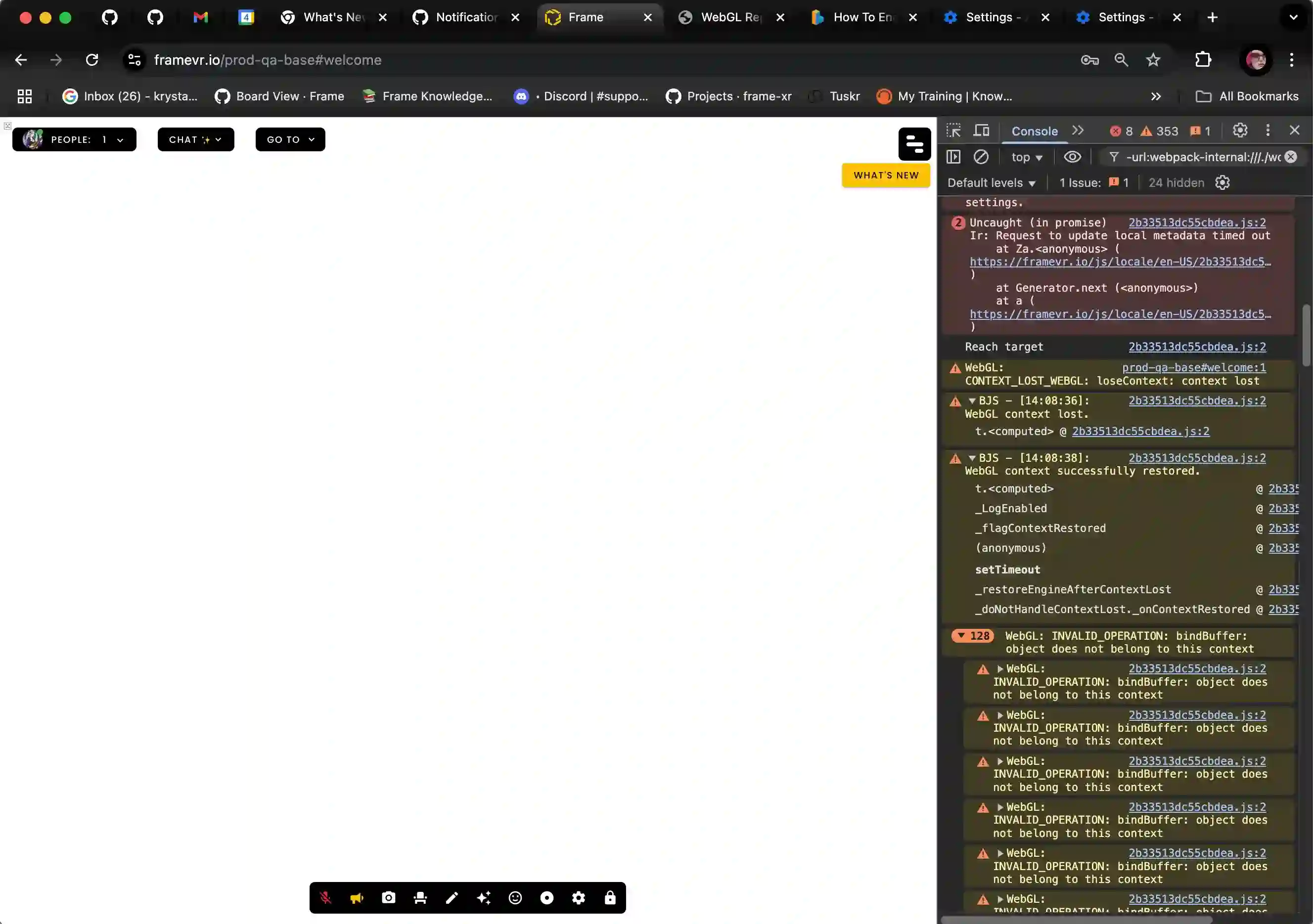
How do you recover from a WebGL crash?
- •Refreshing the page may be enough.
- •If not, try to clear the assets out of the voice zone you were in. Streaming screens or 3D models may be the culprit.
- •Close out of the Browser completely (all windows) and restart it.
- •If you can access the sidebar menu of the frame, update your profile's camera settings to be in first-person view and refresh.
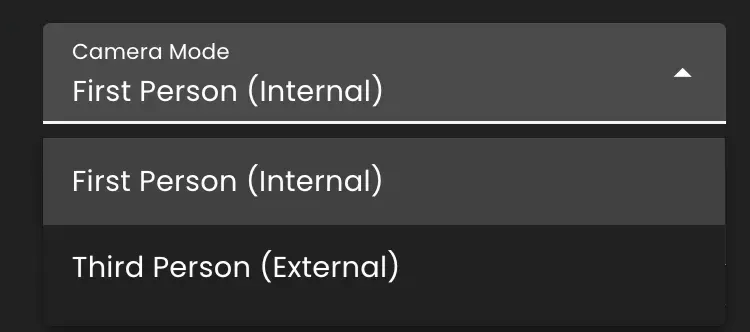
What if none of those methods work?
Even though Chrome and Safari are the standard, sometimes using another browser can help in the short term.
- •Firefox browser is fairly stable if you just need to attend a meeting and need a quick fix.
- •Ensure that Hardware Acceleration is enabled through Chrome Settings: chrome://settings/system > "Use graphics acceleration when available."
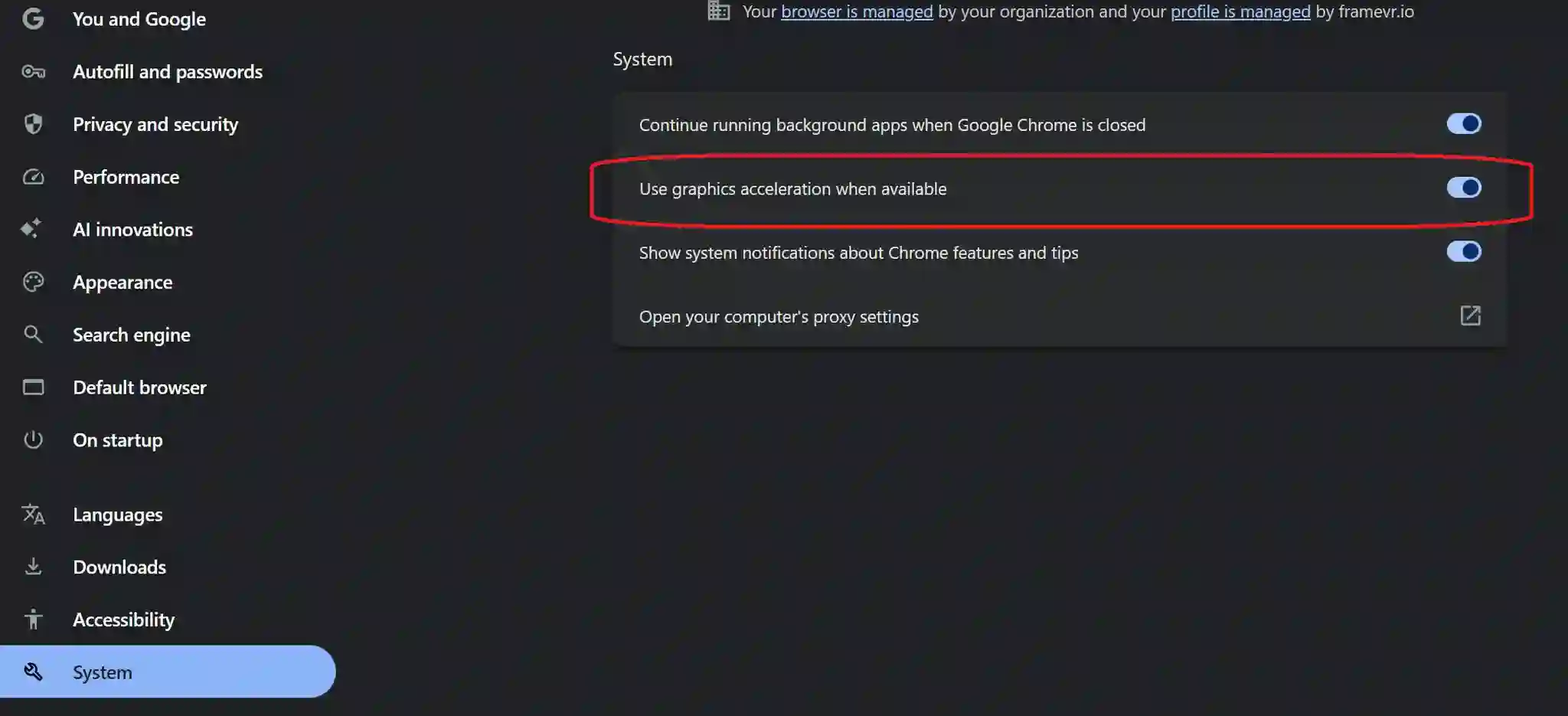
Important
Please try to report these issues if users are unable to recover as we are trying to solve this issue.
Ready to build with Frame?
Join thousands of creators who are building amazing 3D experiences with Frame VR.
For technical assistance, please contact us at support@framevr.io or reach out via our Discord community.
For general inquiries or feedback about Frame, please email hello@framevr.io