
User Audio
Learn how to use your audio with mic controls, spatial voice and megaphone
All things audio can be found in this tutorial - browser settings, user audio settings, and various permissions can be customized to get the experience you need.
Browser Audio Permissions
When going to frame for the first time you will need to grant your browser mic permissions.
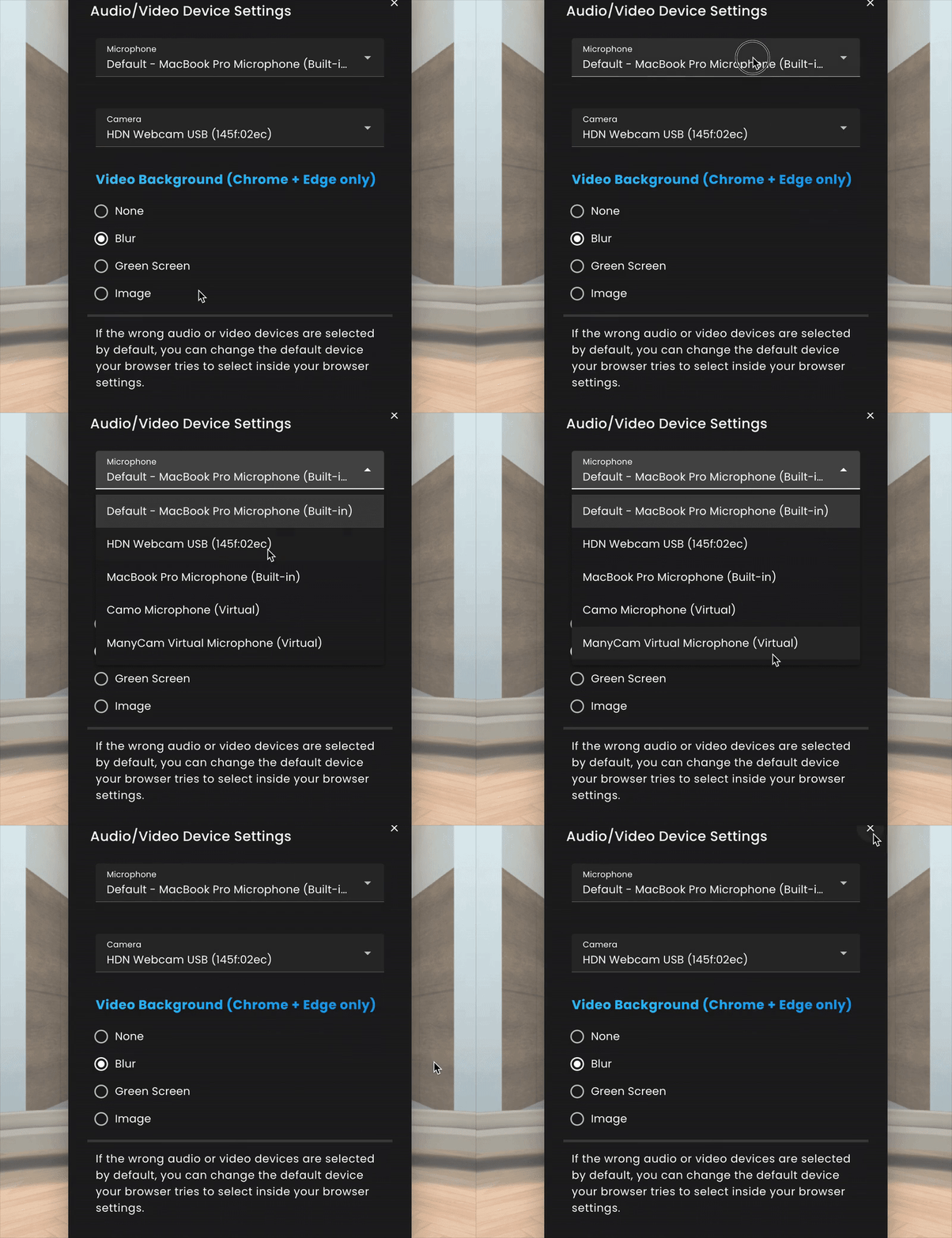
- •Prior to Connecting you will also have the ability to change your mic settings using the Mic/Cam button.
- •If the wrong audio or video devices are selected by default, you can change the default device your browser tries to select inside your browser settings.
Audio Visuals
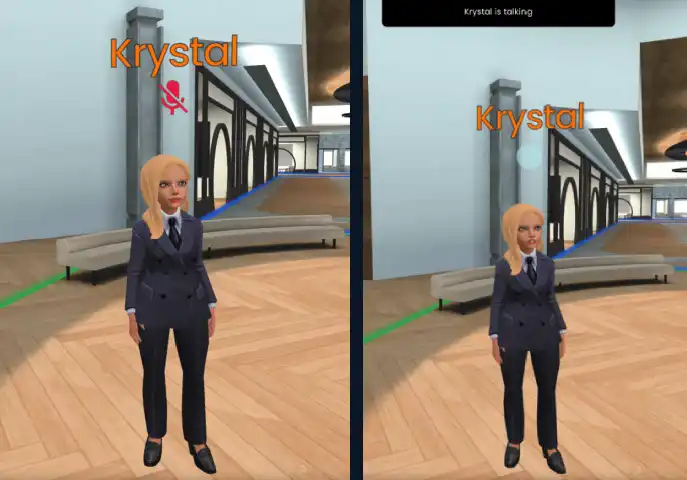
Speaking notifications will appear when users transmit audio.
- •If a users mic is muted a red crossed out microphone is present above their avatar.
- •While users mics are active a blue bubble is present when they speak.
Spatialized Audio & Megaphone Audio
By default, Frame will ask for microphone access from users when they connect to Frame. There is a setting to turn off this default, if you wish. This can be found under Frame Settings under the General dropdown.
- •Audio is "spatialized" in Frame, which means you will hear people louder if you are closer to them, and hear them quieter as they move farther away.
- •In VR, the audio is stereo spatialized, so you will hear someone in your right ear if they are standing to your right.
- •You can use the megaphone button in the toolbar to amplify your voice across a large distance so even those far away from you can hear you. The megaphone does not cut through a voice zone.
- •Voice Zones in Frame give you the ability to make areas surrounding seating private so no one can hear your conversations outside of the zone.
Mic Access Permissions & Muting Others
There are granular permissions for allowing mic access. You can set permissions for Mic Access under Frame Settings under the Permissions dropdown. Options are Anyone, Admins, and Members.
- •Settings that show Anyone but means users who are signed in are the following: Editing, Wall buttons, Transcription, Calendar Invites.
- •If you are an admin, you can mute other users in the People menu using the 'Mute All' option or you can individually mute users.

Tip
You can also use the 'm' hotkey to mute and unmute your microphone.
Ready to build with Frame?
Join thousands of creators who are building amazing 3D experiences with Frame VR.
For technical assistance, please contact us at support@framevr.io or reach out via our Discord community.
For general inquiries or feedback about Frame, please email hello@framevr.io