
Tutorial: Tile Wizard
Create a tile-based environment with Tile Wizard and Generate Tile Map — follow the video or the written guide with screenshots.
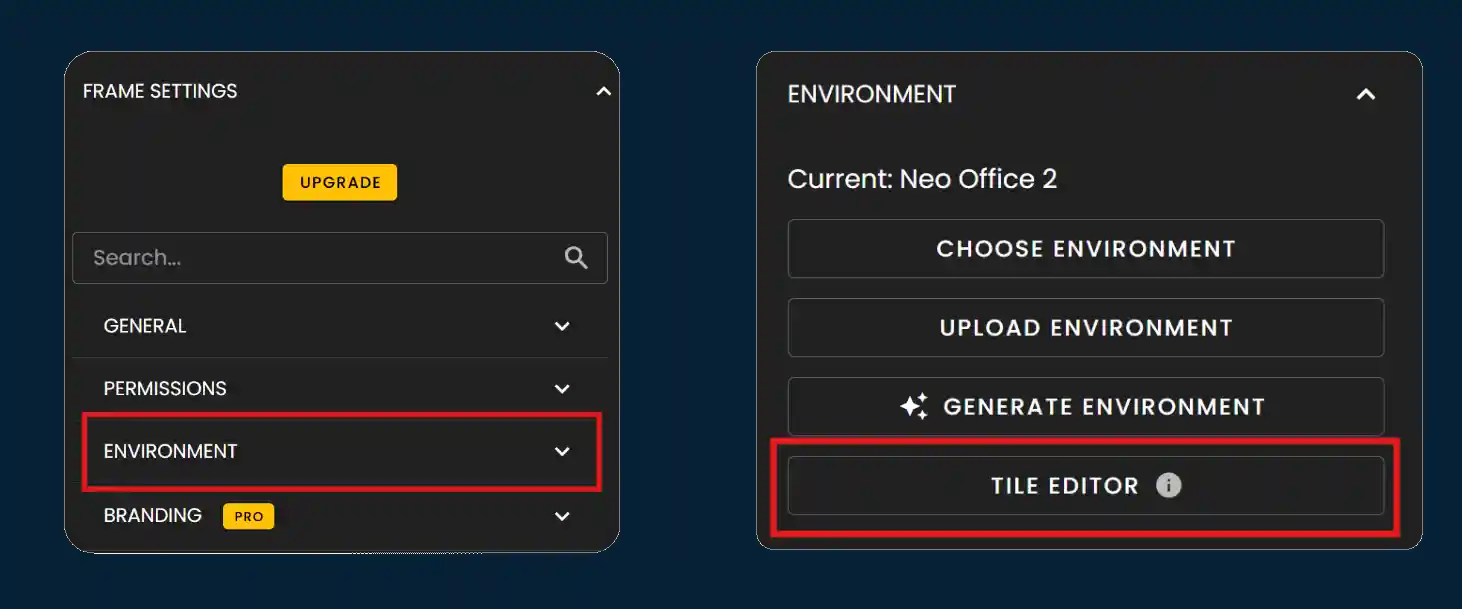
Written tutorial: Tile Wizard. Watch the video above for a full walkthrough, or use the steps below. Start in Frame Sandbox under Environment and Settings, open Tile Wizard, then use the Tile Editor and Generate Tile Map to produce a layout you can refine.
Frame Sandbox: Place settings & Environment
Ensure you are in the Environment tab for your Frame sandbox. Open the Settings (gear) control in the upper area of the UI. From there you can access Tile Wizard. The paired screenshots below show the path; red highlights mark Tile Wizard in the panel. When you need deeper edits, continue into the Tile Editor from the same Environment workflow.
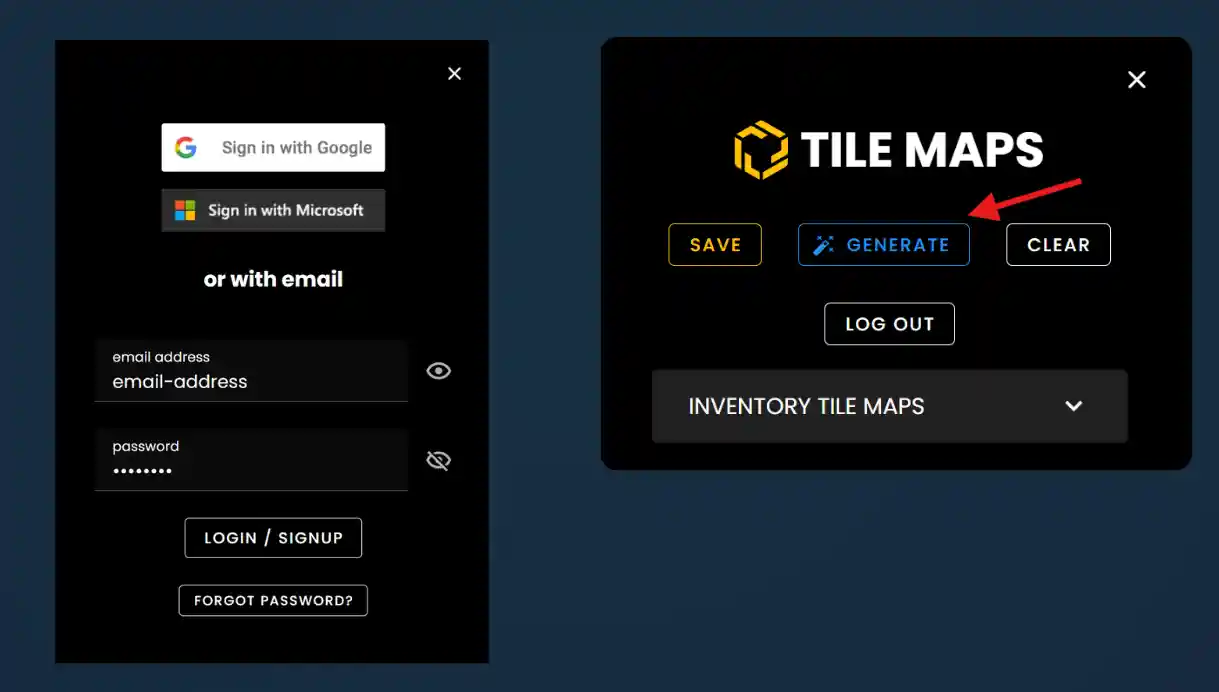
Tile Editor
Sign in to your Frame account when prompted so the console and Tile Maps tools can load. After authentication, open Tile Maps — the Generate action appears when the editor is ready.

Tip
If you do not see Generate, confirm you are signed in and that Tile Maps finished loading. Refresh the page once if the panel was opened before login.
Generating a Tile Map
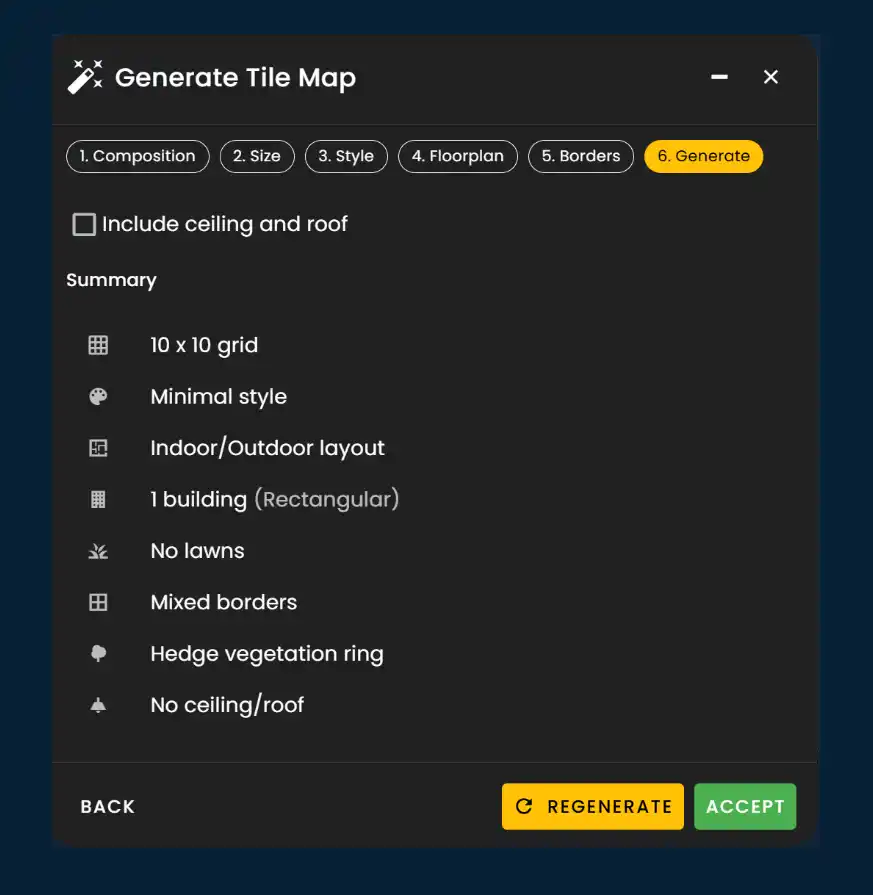
Use the Generate Tile Map wizard in order. Each step narrows category, footprint, style, and props before you run generation.
- •1. Category — pick a base preset (for example Village, Modern, Urban; exact labels match your Frame build).
- •2. Size — set the area or bounds the generation should fill.
- •3. Style — tune materials, palette, or architectural direction.
- •4. Furniture — choose density or toggles for furnished zones.
- •5. Decor — add props, greenery, or detail passes.
- •6. Generate — confirm everything, run generation, and wait for processing to finish before editing tiles manually.
Step 6: Generate
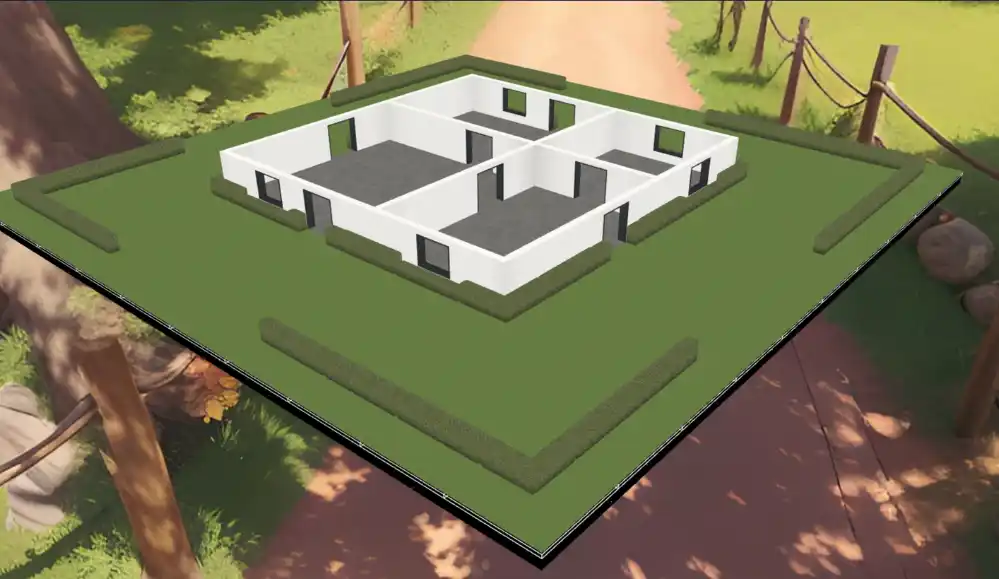
When your selections look right, use Generate to build the map. Processing time depends on size and options; you can step back to earlier wizard pages to adjust category or style before committing.
- •Review checkboxes and presets so they match the experience you want.
- •Start generation and keep the window open until the job completes.
- •After completion, inspect the result in the sandbox and switch to the Tile tab for manual touch-ups.
Note
Labels and tab names can vary slightly by Frame version. If something moved, search Tile Maps for “Generate” or “Tile Wizard.”
Ready to start creating?
Blend generated tiles with manual edits, save your Frame, and invite others to explore. Browse tutorials and use cases on the site for your next build.
Ready to build with Frame?
Join thousands of creators who are building amazing 3D experiences with Frame VR.
For technical assistance, please contact us at support@framevr.io or reach out via our Discord community.
For general inquiries or feedback about Frame, please email hello@framevr.io