
Scenes
Navigate between different environments and organize your content into multiple scenes
The Scenes menu lets you set up different scenes of content. You can then navigate between your scenes, giving an immersive presentation or take your audience on a journey!
What is a Scene
Whenever you bring assets into Frame, you're bringing them in to a scene. You can create multiple scenes. Each scene is a 3D canvas where you can arrange content, and then you can take your audience on a journey through your scenes. Users in a Frame together will always be in the same scene.
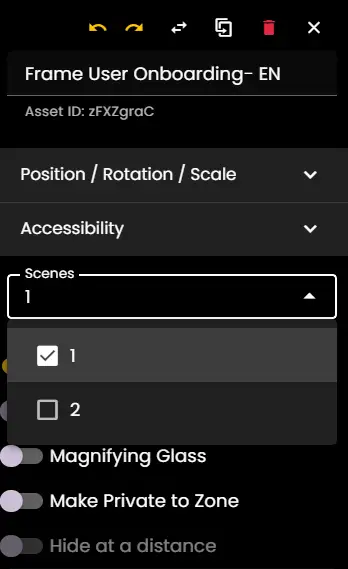
You can choose which scenes assets will appear on if you select the asset in Edit Mode and use the scenes picker. An asset can be on multiple scenes.
- •If you remove an asset from all scenes, it will be deleted
Scene Settings Panel
When you select an asset in Edit Mode, you'll see scene assignment options:
- •Check/uncheck scenes to control where the asset appears
- •Use the Magnifying Glass toggle for search visibility
- •Make Private to Zone to restrict asset visibility
- •Hide at a distance to optimize performance
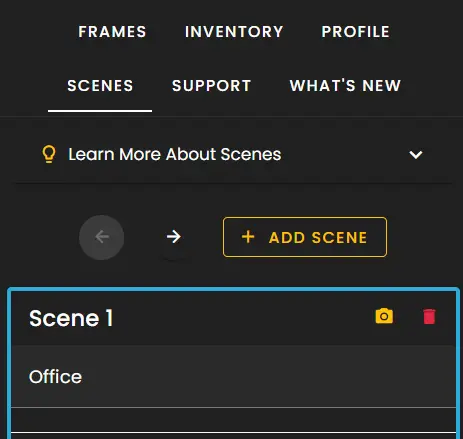
Frame Sidebar
Click the three lines in the upper right hand corner of Frame to access the Sidebar.
Click the Scenes tab.
- •Use arrows < > to switch between scenes.
- •Click + Add Scene to create a new scene.
Be sure to name your scene and use the camera button to take a screenshot of what that scene looks like.
Managing Multiple Scenes
The Scenes panel displays all your scenes with preview thumbnails. You can:
- •Rename scenes for easy identification
- •Reorder scenes to control the presentation flow
- •Delete scenes you no longer need
- •Take screenshots to update scene previews
Scene Reset Behavior
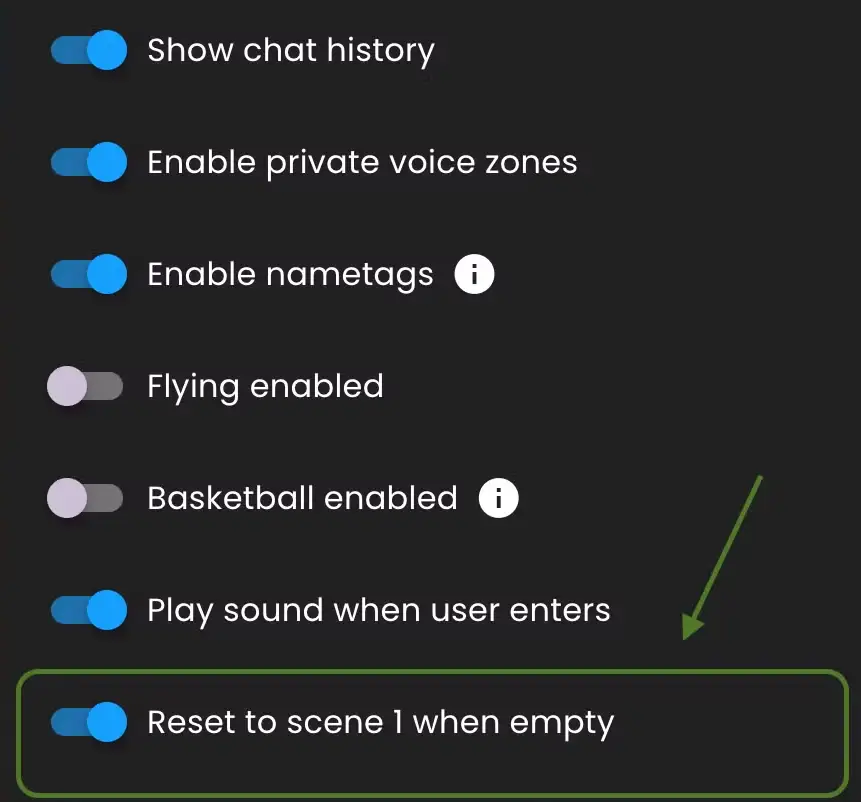
When all users leave a Frame, the Frame will reset to Scene 1.
You can change this behaviour in your Frame Settings > General section.
- •Show chat history
- •Enable private voice zones
- •Enable nametags
- •Flying enabled
- •Basketball enabled
- •Play sound when user enters
- •Reset to scene 1 when empty
Remember: Scenes are powerful for creating multi-room experiences, presentations, or guided tours. Use them to organize content and control the flow of your virtual experience.
Ready to build with Frame?
Join thousands of creators who are building amazing 3D experiences with Frame VR.
For technical assistance, please contact us at support@framevr.io or reach out via our Discord community.
For general inquiries or feedback about Frame, please email hello@framevr.io