
How to Install Our App
Install Frame on your phone or desktop for fullscreen and quick launch
Written tutorial: how to install our app. Watch the video above for a walkthrough, or use the steps below. Ready to go full screen? When you install Frame as a Progressive Web App (PWA), your browser adds a Frame icon you can open like a standalone app—handy on mobile and desktop.
Installation
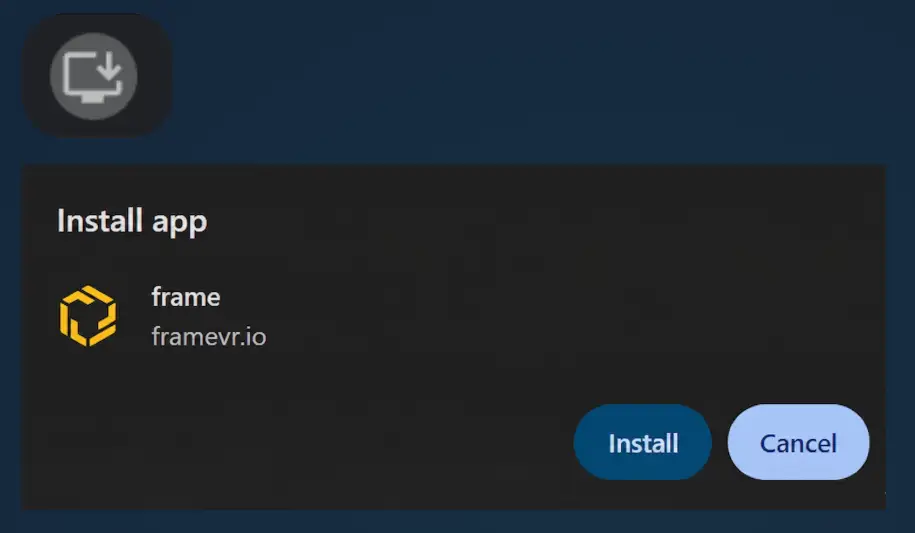
In Chrome, Edge, or another Chromium-based browser, look for the install icon in the address bar (often a monitor with a down arrow or a plus in a square). Click it, then confirm Install or Add to Home Screen. Safari on iOS uses Share → Add to Home Screen.
- •You must be signed in and viewing Frame in a supported browser.
- •If you do not see an install prompt, check that the site is not already installed or blocked by device policy.
What you get
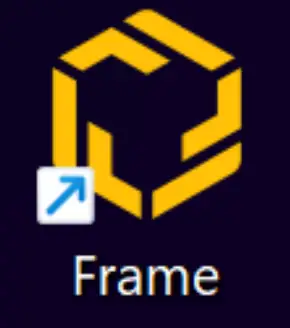
An app icon for Frame is added to your phone or desktop. Opening from that icon can use fullscreen or an app window and may feel closer to a native app than a normal browser tab.
- •Launch Frame from the home screen, dock, or Start menu.
- •Use the in-app menu for options like App Info and Copy URL.
Open Frame from the app
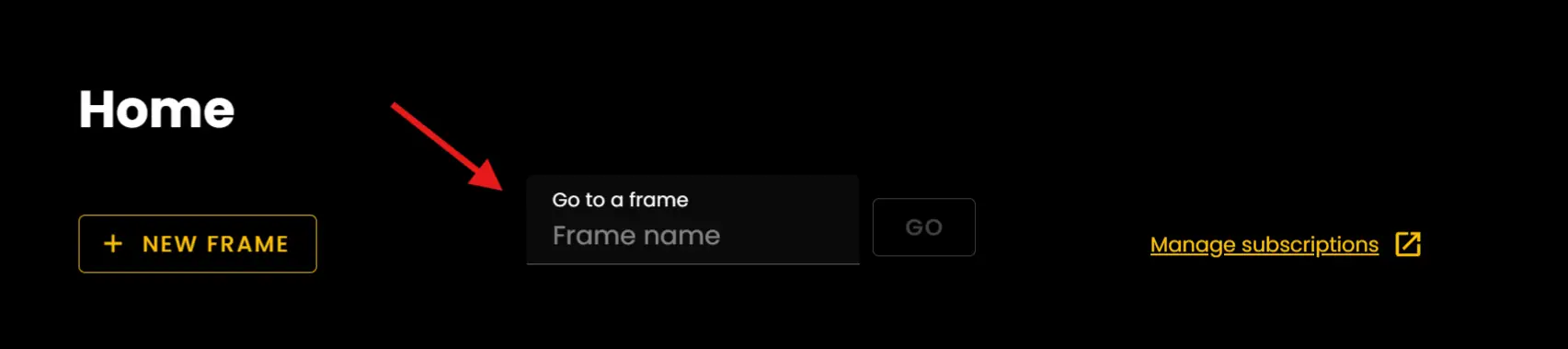
After installation, open the new Frame shortcut. You will land on Frame Home, where you can use Go to a Frame to enter a Frame URL or name.
- •The installed app uses the same account as your browser session when you installed it.
- •You can keep using Frame in the regular browser anytime; the PWA is an extra shortcut, not a replacement.
App menu (three dots)
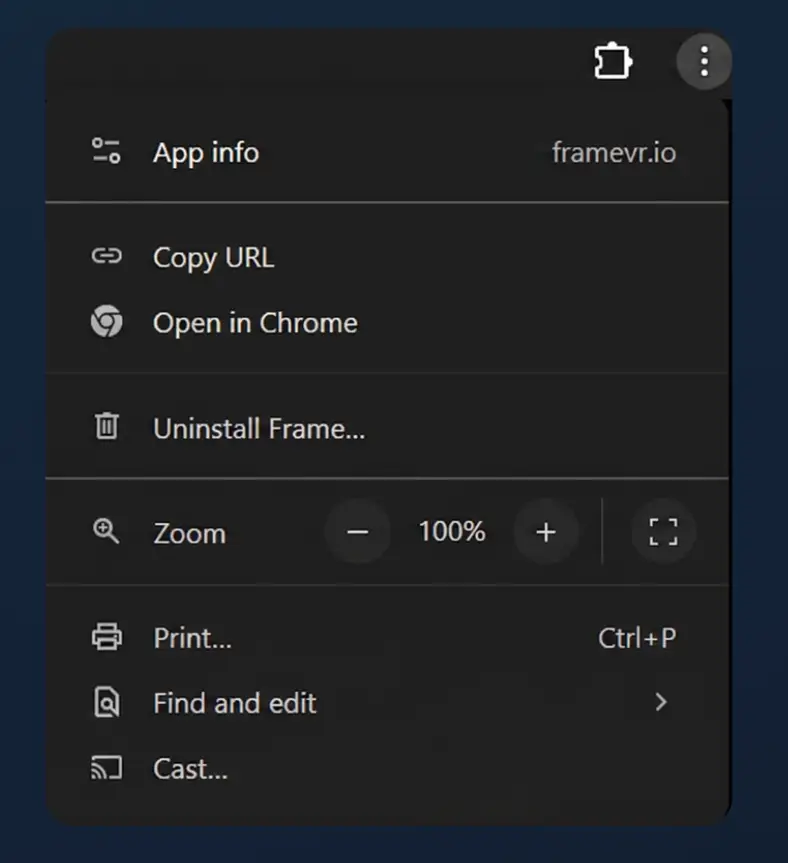
In the installed PWA, open the three-dots menu in the browser chrome for shortcuts that apply to this install.
- •App Info — details about the installed app.
- •Copy URL — grab the current Frame link.
- •Other entries match your browser (for example, zoom, print, or settings).
Ready to start creating?
Open your installed Frame app or browse more tutorials to keep learning.
Ready to build with Frame?
Join thousands of creators who are building amazing 3D experiences with Frame VR.
For technical assistance, please contact us at support@framevr.io or reach out via our Discord community.
For general inquiries or feedback about Frame, please email hello@framevr.io