
Performance Optimization
Optimize Frame performance on any device for smoother sessions
Frame is a metaverse platform that runs from a web browser. This makes it super easy to get into, but it also means you need to be cautious about how many things you can bring into your Frame at once if you want to maintain smooth performance.
- •Ensuring good performance is a delicate dance and often involves compromise
- •Your decisions about what to do will depend on what devices you want to be able to support
- •Decided VR? Just desktop? If you need your users to be on desktop, you can go a bit further. If you need mobile on VR, you should consider less assets
- •We have a performance monitor at the bottom left of Frame Settings that helps you evaluate the performance of your Frame
Overview
This post will give you some tips, tricks, and tools to help you optimize your Frame and identify areas where you can improve its performance. Ultimately, it's up to you to decide what you want to prioritize. Some people expect most of their users to be on desktop, so they might be okay with having lots of assets in their Frames and beefier 3D environments. Others prioritize accessibility from mobile devices, so for them it's important to limit the number of assets and ensure they are using a highly optimized 3D environment.
High Level Tips
- •If you want your Frame to work on mobile, particularly on iOS Safari, you should limit the amount of assets in your Frame to the bare essentials.
- •Less is more. If you're going to bring content into the scene, well, if you can distribute your assets and your cameras across multiple Frames, that makes it easy for people to move between those Frames with ease using Portals.
- •Be cautious about 3D models you find on Sketchfab or other 3D online platforms. They often have too many vertices/triangles.
- •Use Frame environments that are set up to be your hero item. If you're creating a small gallery, use a Frame environment that allows for a small gallery.
- •Our videos are NOT hosted by Frame.
- •Of course, if you experience with anything you can try in the Babylon Inspector, and which might "break" things temporarily in your Frame, can also be turned into changes that you may make official by modifying your Frame.
- •Generally speaking, we don't recommend having any more than: 200 models, 40 video screens, 300k vertices.
Tip
Hopefully these tips got you some good starting points as you figure out how to keep your metaverse beautiful while still not killing performance! If any of those don't work and you still need help on how to get to the bottom of it, just send us an email at support@framevr.io with a link to your Frame and we will give you some tips.
Performance Rating
There's a new built-in Performance Rating in Frame that you can use to get some high level info about what is in your Frame.
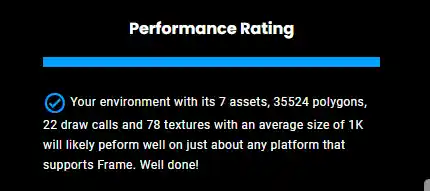
Next to Performance Rating, you will see the vertices per second, counter. Low FPS is a real sign. Generally speaking, you want to shoot for 60 FPS. If you get below 40 FPS, you will probably start to notice some jankiness.
There are lots of things that can cause the FPS to be low: Too many textures (images, videos, 3D models with textures), too much geometry (too many vertices in your 3D models), too many draw calls, too much JavaScript causing your performance to take a hit, and it isn't clear if you're wearing Frame on an old/slow device.
Help Myself, which roughly counts the complexity of the 3D models in your current view. The more 3D models with high texture and vertex count, the higher this number is going to be. This is only updating about once 10 seconds and 3D environments is not included in this count.
Texture resolution tracks how much texture memory is being loaded into your Frame. These could be textures from images, videos, or the textures on 3D models. We also check the average resolution of your textures. Lower resolution textures can boost performance, but may impact the quality of your Frame.
The Babylon Inspector
We build Frame with a front-end development framework called Babylon.js and we have a close relationship with the awesome Babylon.js team. Because of this, we have access to some powerful tools from Babylon.js that you can use to dive even deeper into your performance issues. One of them is the Babylon Inspector. This tool is a lot more complex than our simple Performance Rating tool, so we don't make it generally accessible unless you know the secret key to unlock it.
Just put ?debug=true at the end of your Frame url, and then you will have a new button at the top center of your Frame that will let you open up the Babylon Inspector.
You will need to close the Frame sidebar to see the Babylon Inspector. Once you open the inspector, you'll see a row of horizontal icons about halfway down. Click the one in the middle that looks like a little graph and you will get a faster, more comprehensive look at some counts and stats that all play a role in how well your Frame performs.
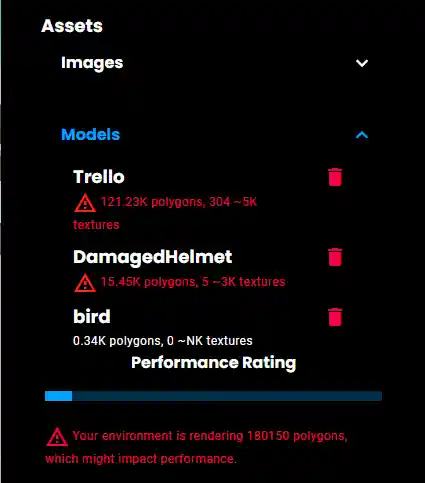
The FPS counter here updates in real time instead of once every three seconds, and there are a lot more details you can dive into. Those who have experience with 3D geometry or performance debugging will be familiar with many of these terms. You can also look into any single item in your Frame by popping open the "Nodes" section up at the top of the Inspector. This will include everything in the scene, including avatars, and you can click on each item and then see information about it by clicking the page icon that is the first one in the row of horizontal icons.
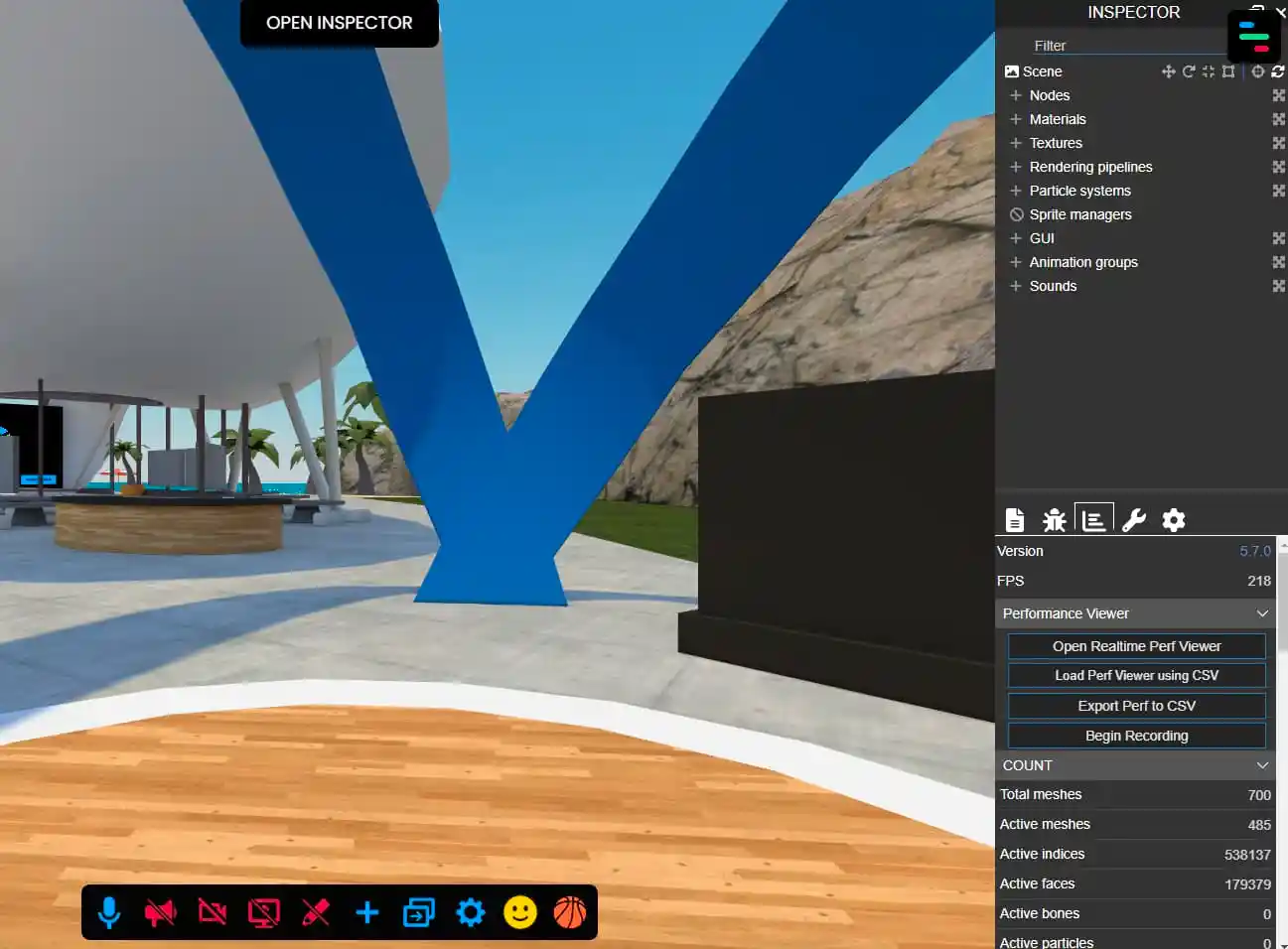
This tool is handy because you can click the eyeball icon next to an item to hide it, and you can even click the "dispose" button down below in the general menu to remove the item from the scene entirely. This does not permanently delete the asset from your Frame. It just gives you the opportunity to temporarily see how removing it might impact your performance/FPS. If you dispose of the item altogether instead of just hiding it, you will need to refresh the Frame to bring it back into the scene. If you just hide it with the eyeball icon on the right, you can bring it right back by clicking the eyeball again.
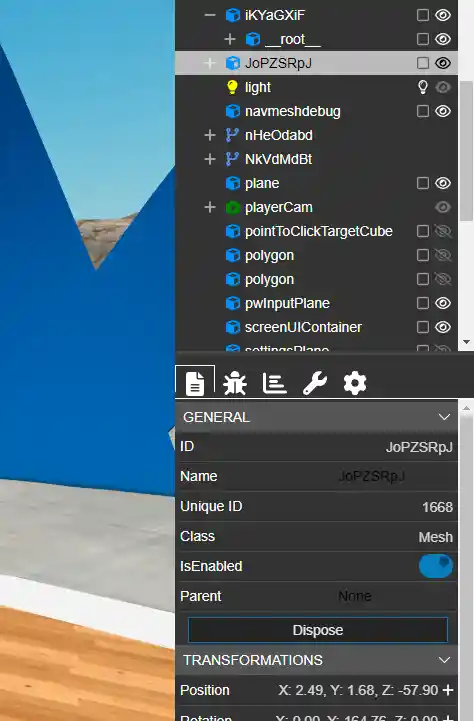
Of course you can experiment with anything you'd like to in the Babylon Inspector, and while it might "break" things temporarily in your Frame, just keep in mind that changes that you make from the Inspector are not permanent and you can always bring things back to the way they were simply by refreshing your Frame.
Recommended Limits
Generally speaking, we don't recommend having any more than:
- •200 draw calls
- •130,000 active faces
- •20 materials
Need Help?
Hopefully these tips give you some good starting points as you figure out how to make your metaverse beautiful while still maintaining decent performance. It's a balancing act, and you have to decide what you want to prioritize. We're here to help if you are having performance issues in your Frames and the above tips and tools don't help you get to the bottom of it. Send us an email at hello@framevr.io with a link to your Frame and some screenshots of what you see in your Babylon Inspector and we'll do our best to help! You can also ask questions on our Discord.
Remember: Your Frame will perform as well as you design it. Use these tools to identify bottlenecks and optimize for your target audience's devices.
Ready to build with Frame?
Join thousands of creators who are building amazing 3D experiences with Frame VR.
For technical assistance, please contact us at support@framevr.io or reach out via our Discord community.
For general inquiries or feedback about Frame, please email hello@framevr.io