
Images
Upload and arrange images to display visuals throughout your environment
With Frame you can upload your own images or create AI-generated images with prompts. There are various settings that can be applied to images depending on how you are using them in your environment.
The Creation Menu button in the toolbar
Click the Creation Menu button in the toolbar.
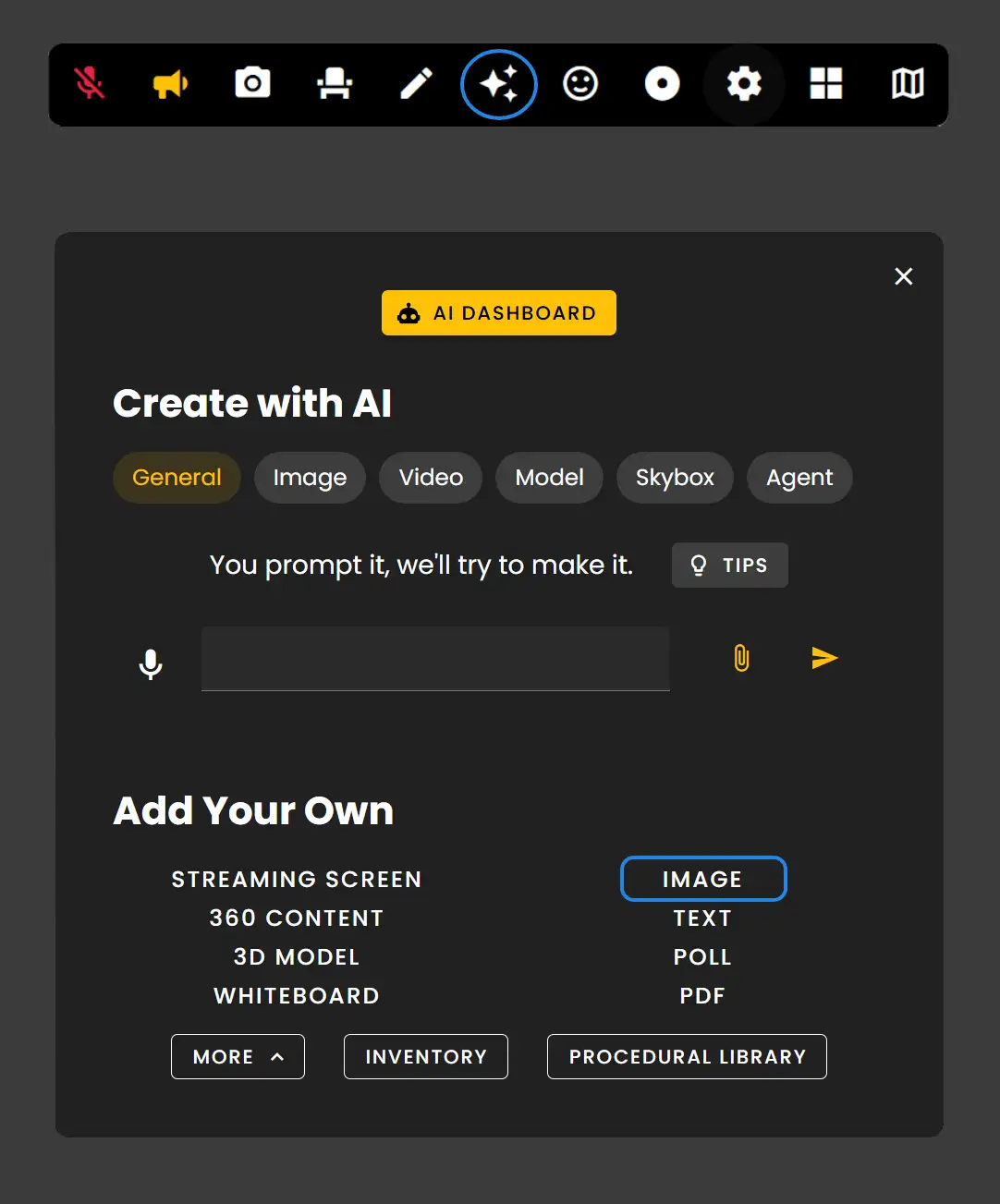
Click 'Image' under Add Your Own.
- •Images can be .png or .jpg files
- •The file size limit is 10MB
- •We recommend compressing all your images to help with performance
Positioning and Scale
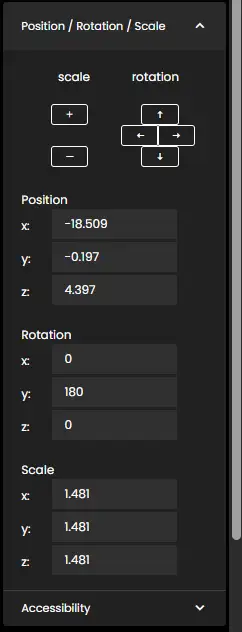
Once your image is uploaded, go into Edit Mode and then select the image. In the images edit menu you will see options for placement and scale as well as toggles for enabling specific settings for the image.
- •In the images edit menu you will see options for setting the position of the image and adjusting its scale.
- •Use the arrow buttons to quickly rotate or scale the size of the image or use the axis options for custom placement.
Use Zoomable, Downloadable toggles to make images easily readable and accessible to your users.
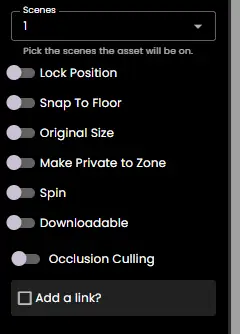
Use Links to send users to specific websites or to play videos in an embedded overlay.
Remember: Images are a great way to display visuals in your Frame. Use the edit menu to position and scale them to fit your environment perfectly.
Ready to build with Frame?
Join thousands of creators who are building amazing 3D experiences with Frame VR.
For technical assistance, please contact us at support@framevr.io or reach out via our Discord community.
For general inquiries or feedback about Frame, please email hello@framevr.io