
Green Screen & Webcam Effects
Use green screen settings and webcam effects to enhance your sharing experience
Use Green Screen settings and Webcam Effects to make your sharing experience more unique! Hide your background completely or add a fun image.
Toolbar access
Use the gear icon in the bottom toolbar to access Audio/Video Settings in Frame.
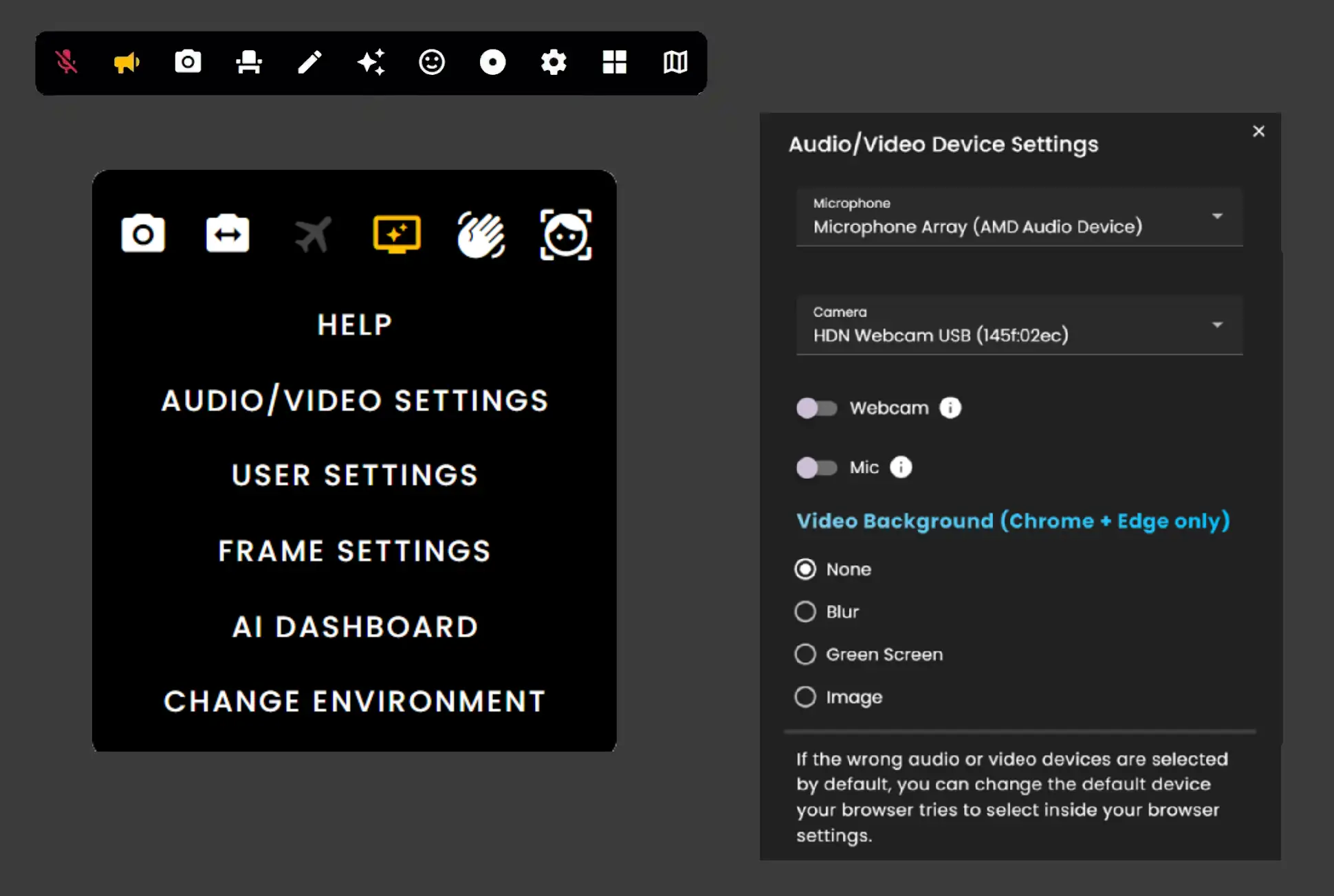
Click on 'AUDIO/VIDEO SETTINGS' from the menu.
In the Audio/Video Device Settings panel, you can configure your Microphone, Camera, and enable Webcam and Mic toggles.
Video Background options (Chrome + Edge only): None, Blur, Green Screen, Image
Green Screen Toggle
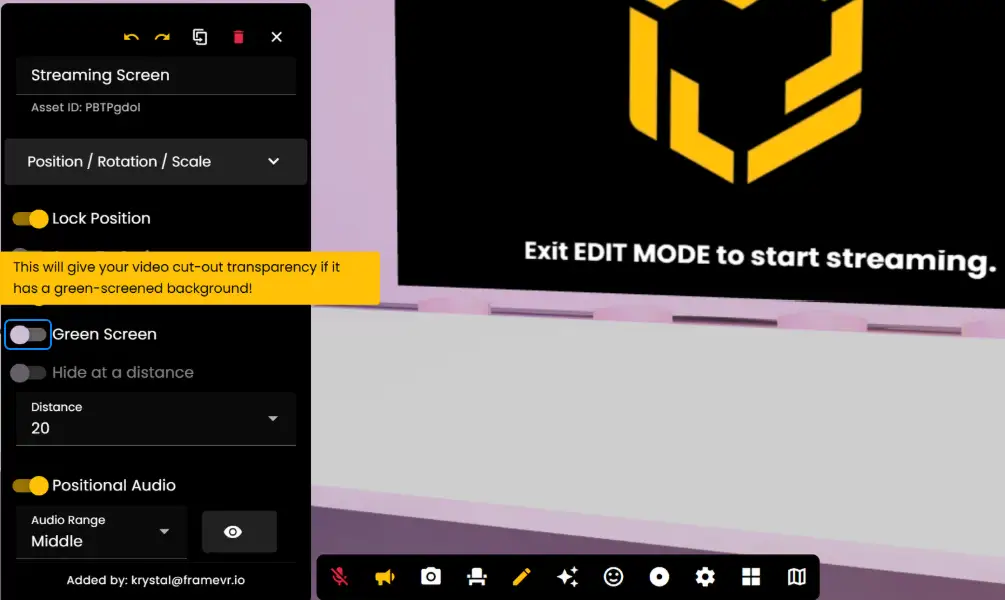
Turn on the transparent cut-out by selecting the Video or Streaming Screen asset in Edit Mode and turning on the Green Screen toggle.
Remember: Green Screen and background effects help you present professionally in your Frame while hiding your real background.
Ready to build with Frame?
Join thousands of creators who are building amazing 3D experiences with Frame VR.
For technical assistance, please contact us at support@framevr.io or reach out via our Discord community.
For general inquiries or feedback about Frame, please email hello@framevr.io