
Frame VR & Handtracking
Written guide for Frame in VR; video covers hand tracking in VR
Watch the video above for a hand tracking walkthrough in VR. The written steps below cover using Frame in VR: Frame works in VR headsets and has been tested in house with the Quest VR line. We recommend setting up Frame on desktop and using VR headsets for basics like navigating the space, speaking, and viewing content.
VR Browser & Controls
Open the VR Browser and navigate to the Frame you want to Connect to. If you need to log in, use the sidebar before entering VR immersive mode.
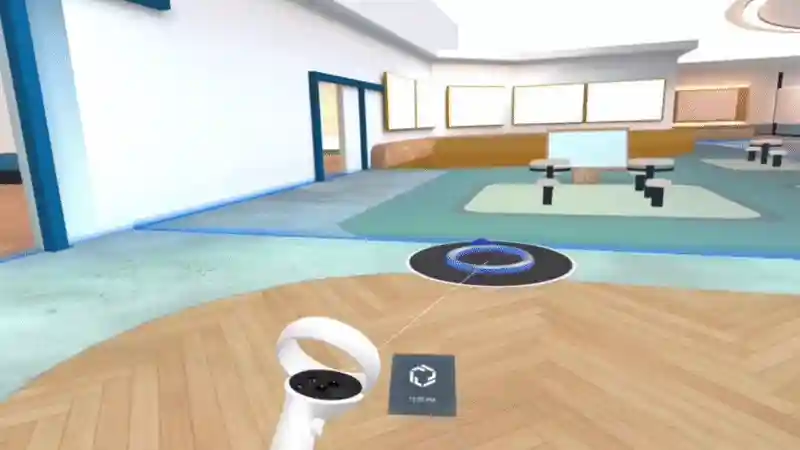
- •Move the joystick left, right and backward to rotate camera and move backwards.
- •Move the joystick forwards to see the teleport placement UI. Release the joystick to teleport to that point.
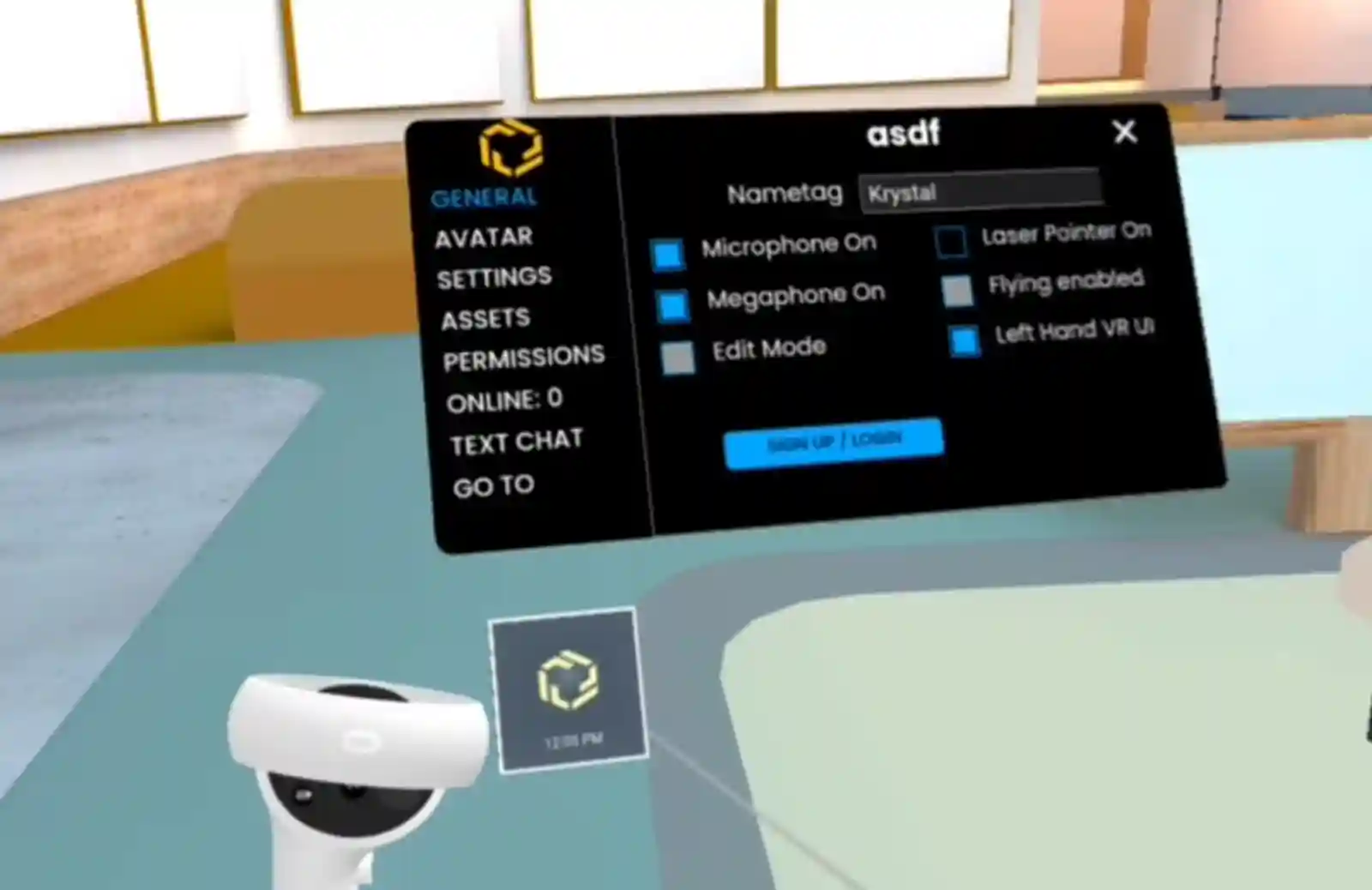
- •Access the VR User Interface with the Frame button that is attached to the VR wristwatch on your left wrist.
- •You can move the UI to the right wrist by disabling the setting under 'General'.
Compatibility Notice
Frame is not compatible with Google Cardboard.
Ready to build with Frame?
Join thousands of creators who are building amazing 3D experiences with Frame VR.
For technical assistance, please contact us at support@framevr.io or reach out via our Discord community.
For general inquiries or feedback about Frame, please email hello@framevr.io