
Flat Mode
A familiar 2D video call interface within Frame
Flat Mode brings a familiar feel of a standard video call into Frame. Seamlessly transition between 3D meetings and Flat Mode depending on your meeting and audience needs. Share multiple screens, webcams, and chat all in one view!
Webcam View & Questions
The Webcam view provides a clear layout of all participants. Additionally, the 'I have a question' feature allows for non-intrusive signaling.
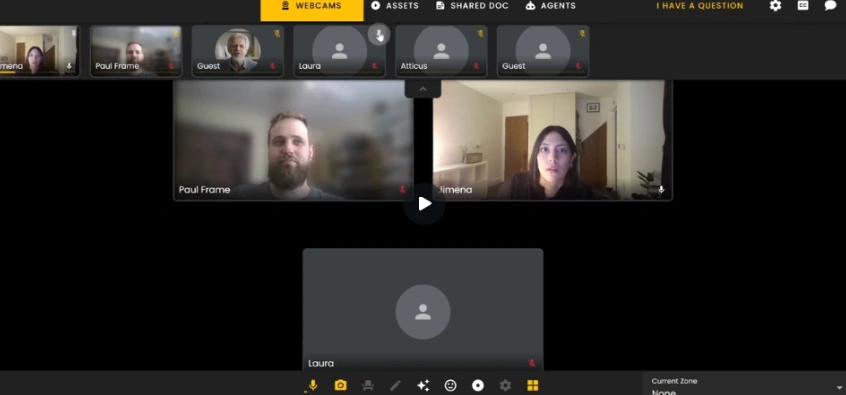
I have a question
This button on the top right corner let's participants quietly signal they have a question, alerting hosts without interrupting the meeting flow.
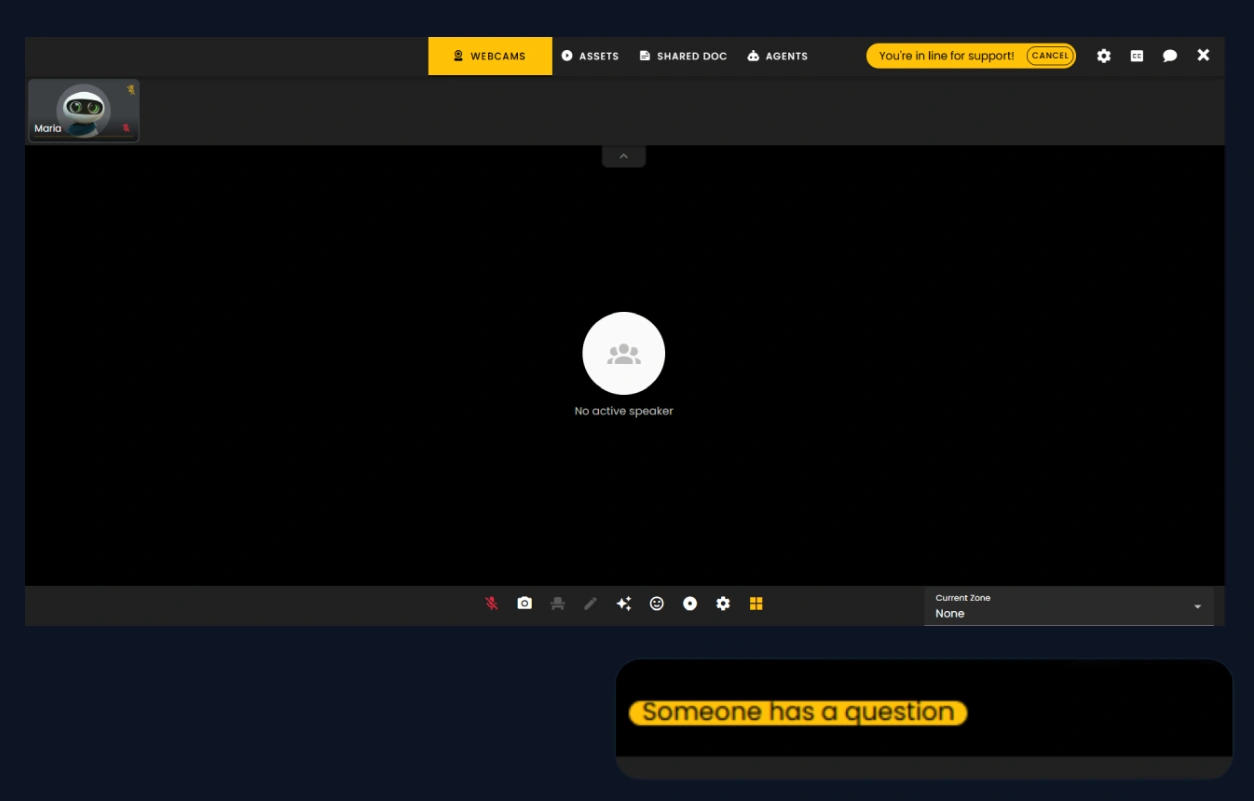
Settings Wheel Icon
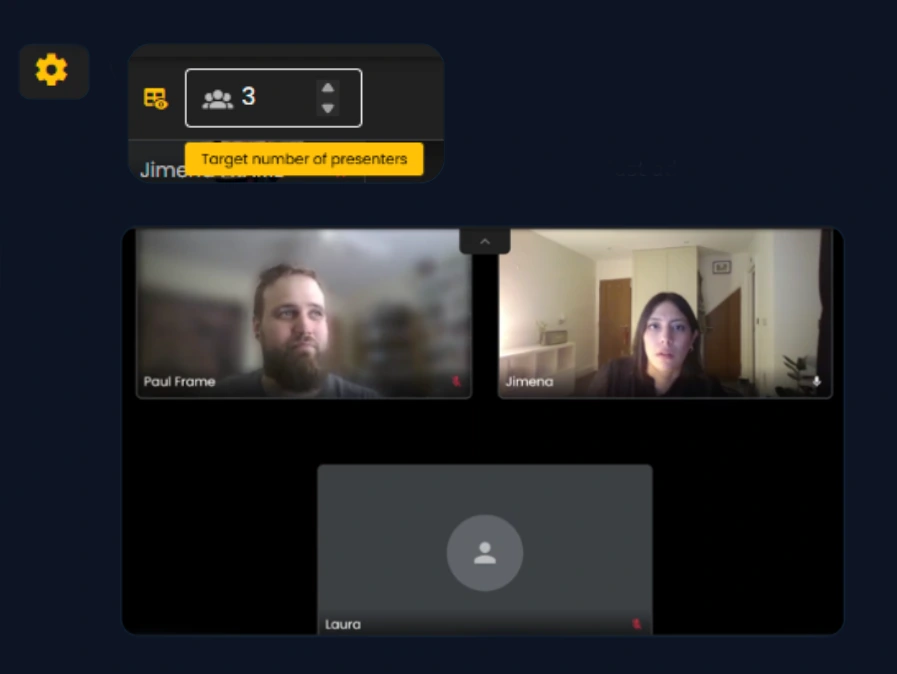
When you click the settings wheel on the right corner, you will get two options to customize your view:
1. Target number of presenters: Lets you select how many users to display as main speakers on screen, controlling the presenter view size. Just add the number of presenters you want to see on your screen.
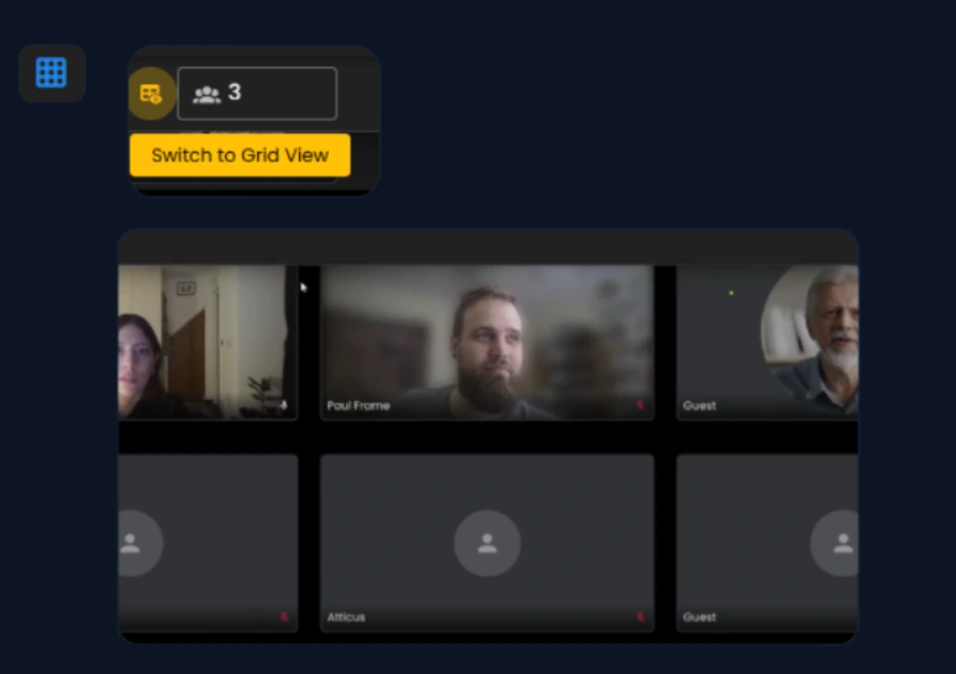
2. Grid View: In webcam view settings, you can switch between presenter or grid layout where you can see all the users in a grid by default.
Assets View
The Assets view in Frame Flat Mode is like a moodboard layout showing all your Frame assets in one place. You can organize, move, resize, zoom, and prioritize files like PDFs, images, and videos. You can also share your screen, making it easy to collaborate and review content together during meetings.
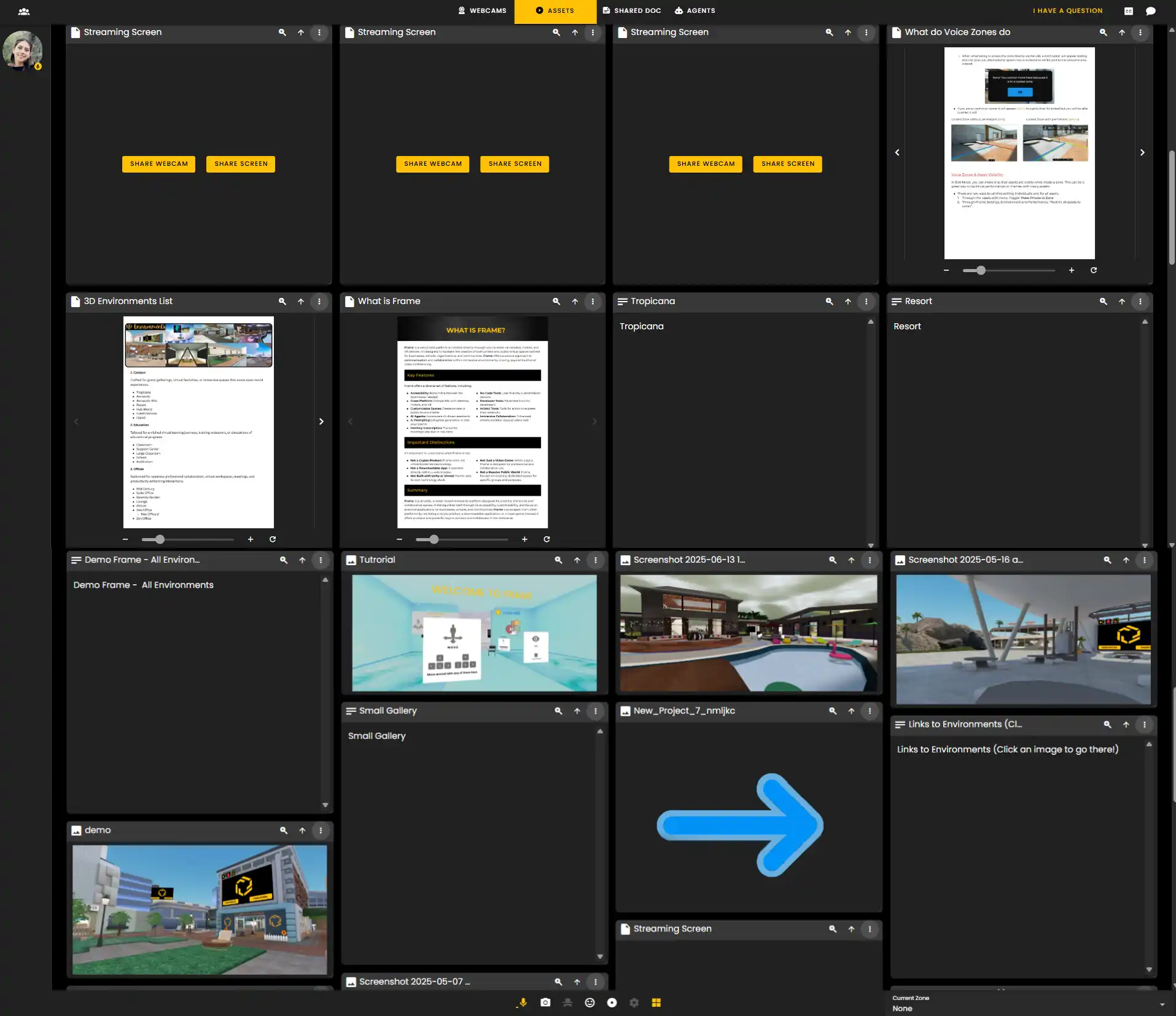
Please note that certain content is not visible in Flat Mode. These include:
- •❌ Spawn Spots
- •❌ Particles
- •❌ Shaders
- •❌ Web Browser
- •❌ 360 images
- •❌ EZGroups
- •❌ 3D Models
- •❌ Stock Ticker
- •❌ Shape
- •❌ Whiteboard
- •❌ Splats
- •❌ News
Shared Doc
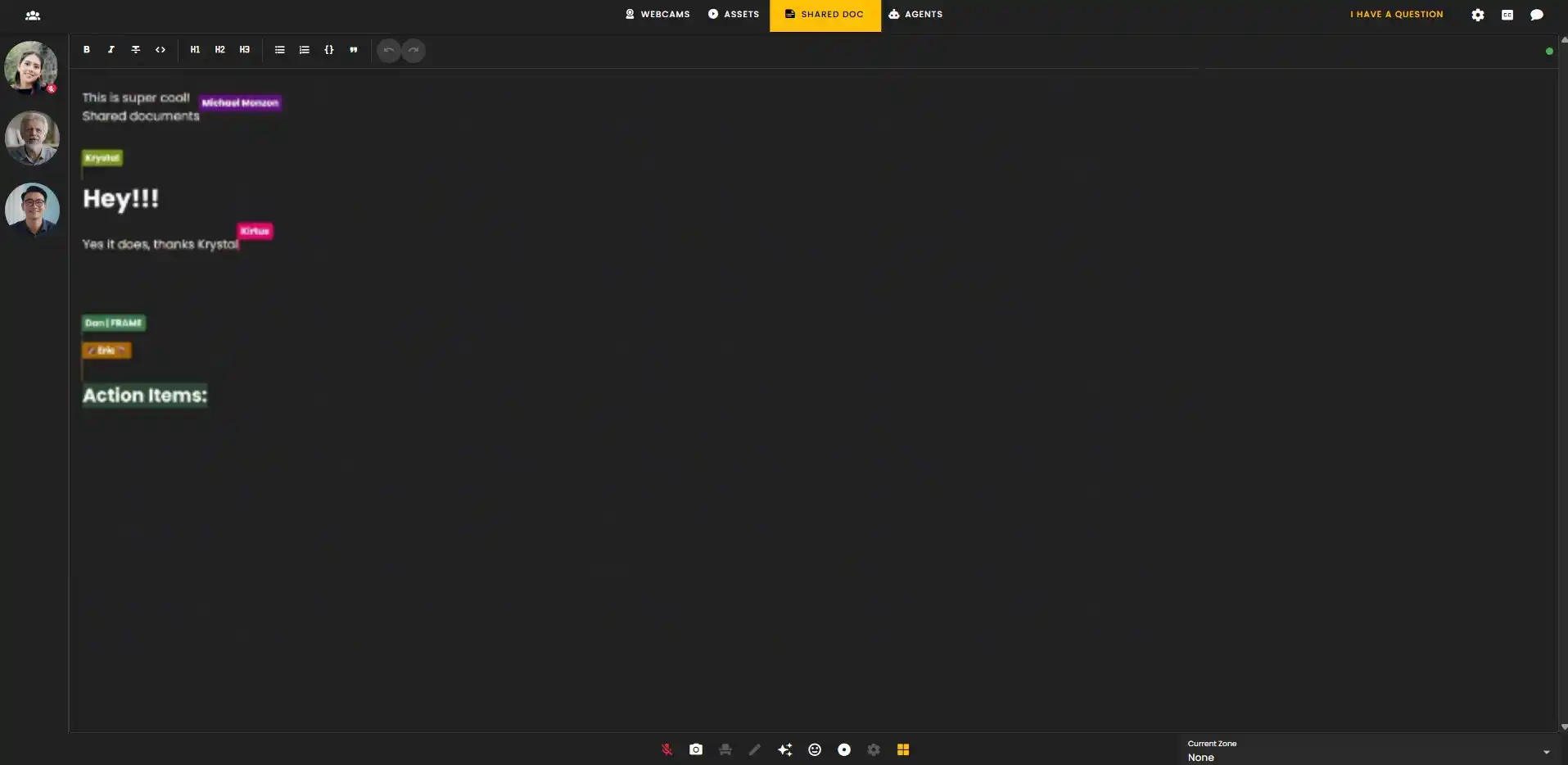
A live, collaborative document where all meeting participants can add notes, tag each other, and edit in real time.
- •It acts like a shared notepad during meetings, helping everyone stay on the same page without screen-sharing distractions.
Chat, Transcripts & Live Translation
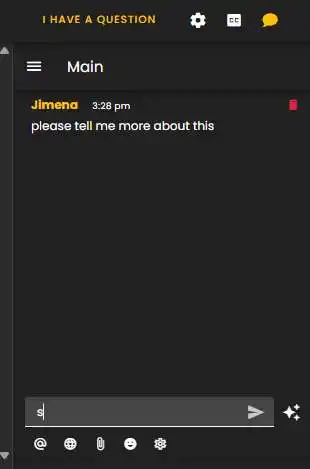
In Frame Flat Mode, the chat let's you send text messages to individuals or the whole group, share files, use emojis, and interact with AI chatbots.
- •Supports live translation in over 46 languages.
- •Provides real-time meeting transcription to enhance communication and collaboration.
How to Access
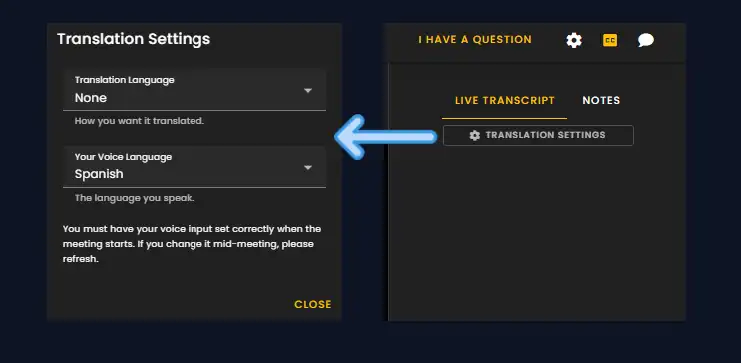
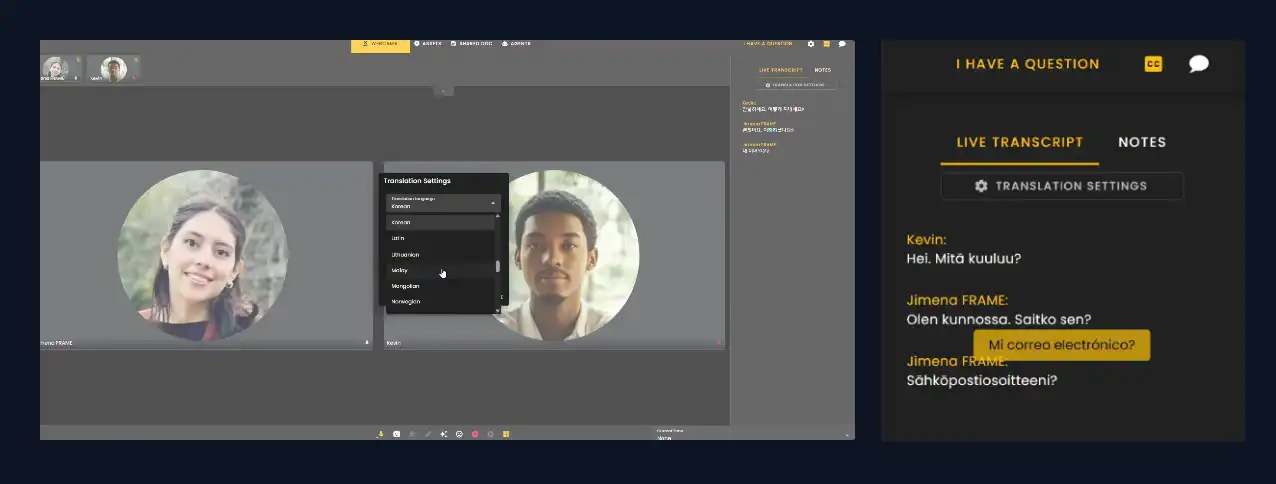
To access translation and live transcript features, click on the 'TRANSLATION SETTINGS' button found in the live transcript panel. This opens the Translation Settings where you can set:
Note: It's important that your voice input is set correctly when the meeting starts, as you may need to refresh if you change it mid-meeting.
- •1. Language you want the conversation translated into.
- •2. Your own voice language (the language you speak).
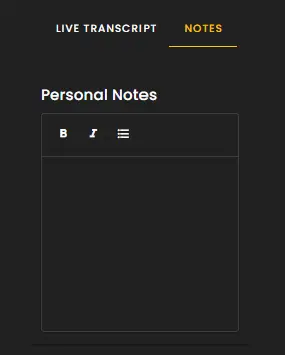
Live Transcripts & Notes
Live transcripts appear in real time on the 'LIVE TRANSCRIPT' tab, showing what is being said as text. Hovering over translated text reveals the original language spoken.
- •Helps users understand both the translation and the source language clearly during the conversation.
- •There is also a 'NOTES' tab where meeting notes can be taken or viewed separately.
Translation Interface
Make sure you have the transcribe meeting icon activated to see the live transcript.

- •Your Translation Interface: Configure your settings to see the live transcript.
- •Other User View: The user you are talking to will see the live translations according to their selected language.
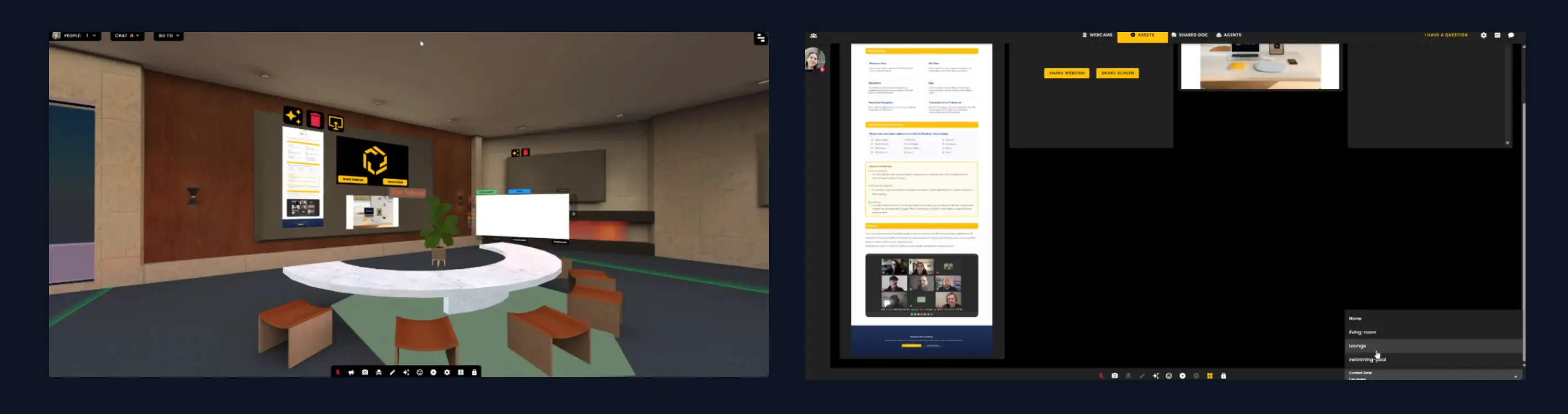
Voice Zone Navigation
Voice zones are special areas marked by blue lines where only people inside that zone can hear and talk to each other.
- •In Flat Mode, changing between voice zones transports you to a different area of the scene, showing the content and people present in that zone.
- •You can restrict access to voice zones or join one directly using a link with the voice zone name: `www.framevr.io/office#livingroom`.
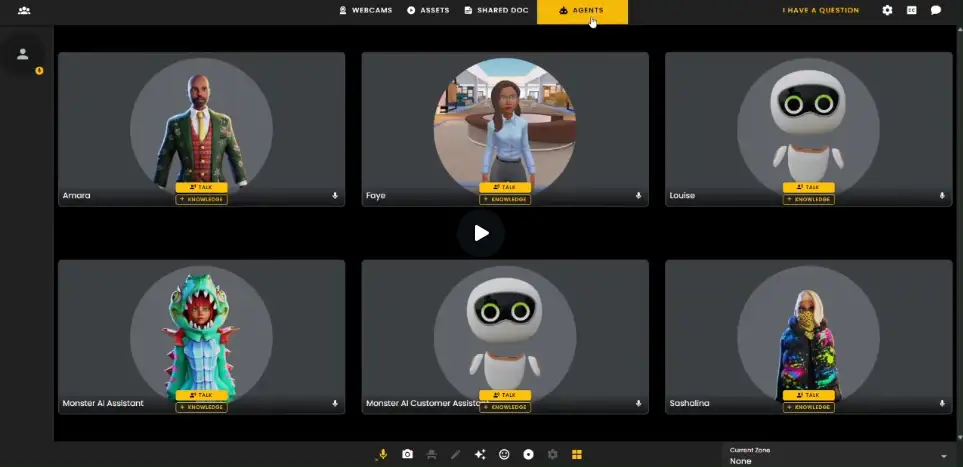
Agents View
The agents tab is an easy-access menu where users can view, manage, and chat with AI assistants. Each agent has its own separate knowledge base, allowing tailored interaction and training.
- •Create and manage multiple AI agents with unique knowledge bases
- •Chat with agents directly from the Flat Mode interface
- •Each agent can be trained on specific documents and information
Configuration for Admins
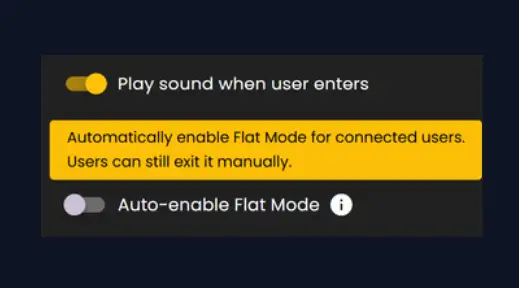
The 'Auto-enable Flat Mode' toggle is found in the sidebar under general settings. Admins can turn this on to have all users join meetings in Flat Mode automatically.
- •Users can still leave Flat Mode if they want to switch to full 3D.
- •Helps create a consistent and easy experience for everyone joining the Frame.
Flat Mode Best Practices
Get the most out of Flat Mode by following these best practices for meetings and collaboration:
- •Start in Flat Mode: Enable auto-start for a consistent meeting experience
- •Organize Assets: Keep your workspace clean by removing unused files
- •Use Voice Zones: Separate discussions into different voice zones for better organization
- •Enable Transcripts: Turn on live transcription for accessibility and record-keeping
- •Leverage AI Agents: Use agents to answer common questions and provide assistance
Important Information
Asset Organization: Meeting Titles and Tags are editable, allowing you to customize and refine the information. Workspace Management: To maintain a clean and efficient workspace, remember to delete uploaded PDFs, images, and videos after meetings. Zone Privacy: To keep content within your zone, set 'Make Private to Zone' on the asset or toggle 'Restrict All Assets to Zones' in the sidebar.
Ready to build with Frame?
Join thousands of creators who are building amazing 3D experiences with Frame VR.
For technical assistance, please contact us at support@framevr.io or reach out via our Discord community.
For general inquiries or feedback about Frame, please email hello@framevr.io