
Dynamic Assets
Create dynamic assets for interactive content
You can now add multiple assets to your Frame at once instead of individually adding assets and having to place and edit their position afterwards.
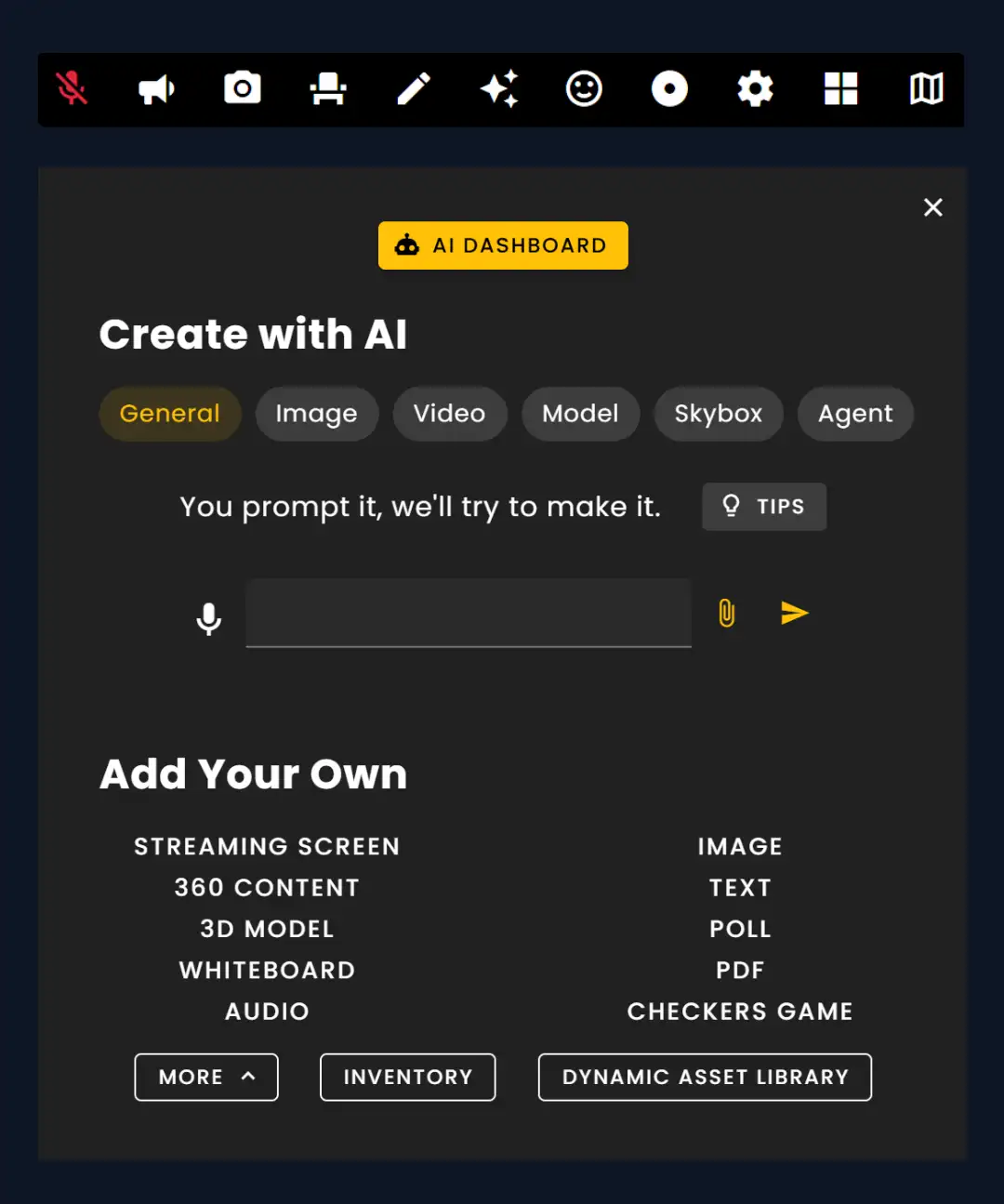
The Creation Menu button in the toolbar
Click 'Dynamic Asset Library' at the bottom of the menu.
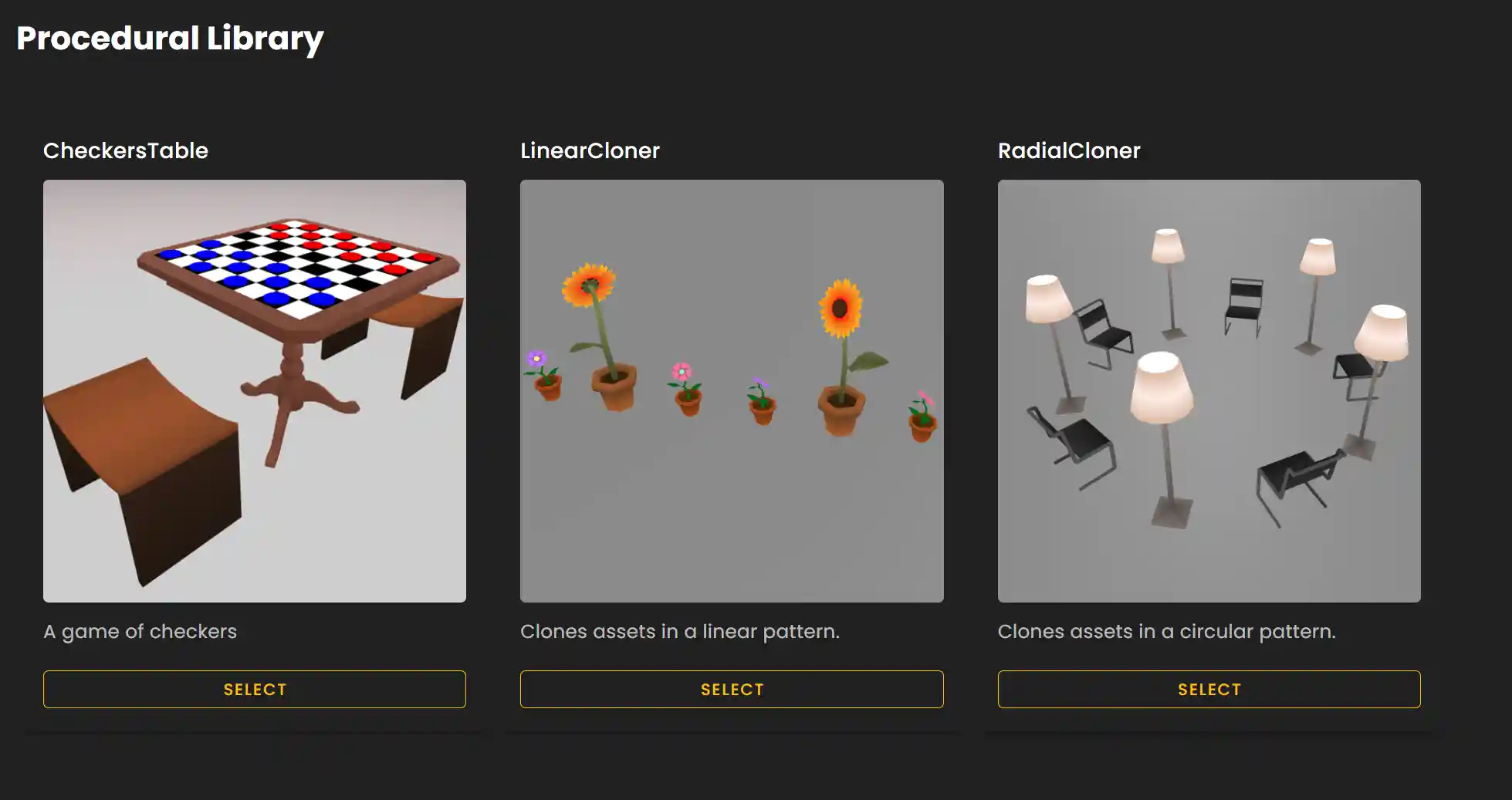
Adding Assets to Linear and Radial Cloners
Follow these steps to add and configure your dynamic assets:
- •1. Click 'Select' to add a Cloner to your Frame.
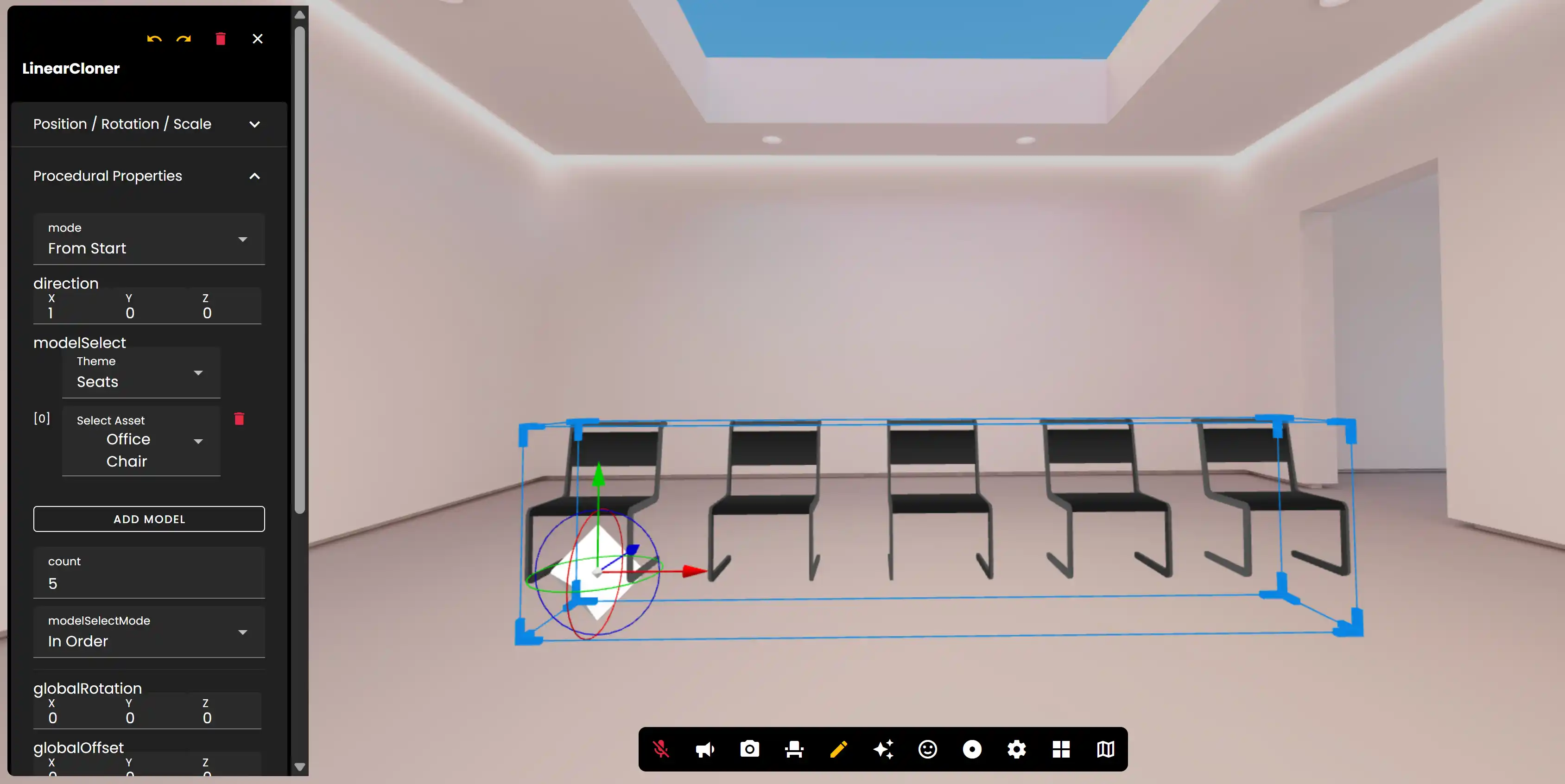
- •2. While in Edit Mode, click the white diamond asset to start adding assets.
- •3. Use various settings to add assets to the cloner and update their positions.
Configuration options:
- •Click 'Select Theme' to see asset categories.
- •Click 'Select Asset' to choose an asset to add to the lineup.
- •Click 'Add Model' to have multiple models appear in a lineup.
- •To see all the models you have added increase the 'Count'.
Linear and Radial Specific Options
Linear Options:
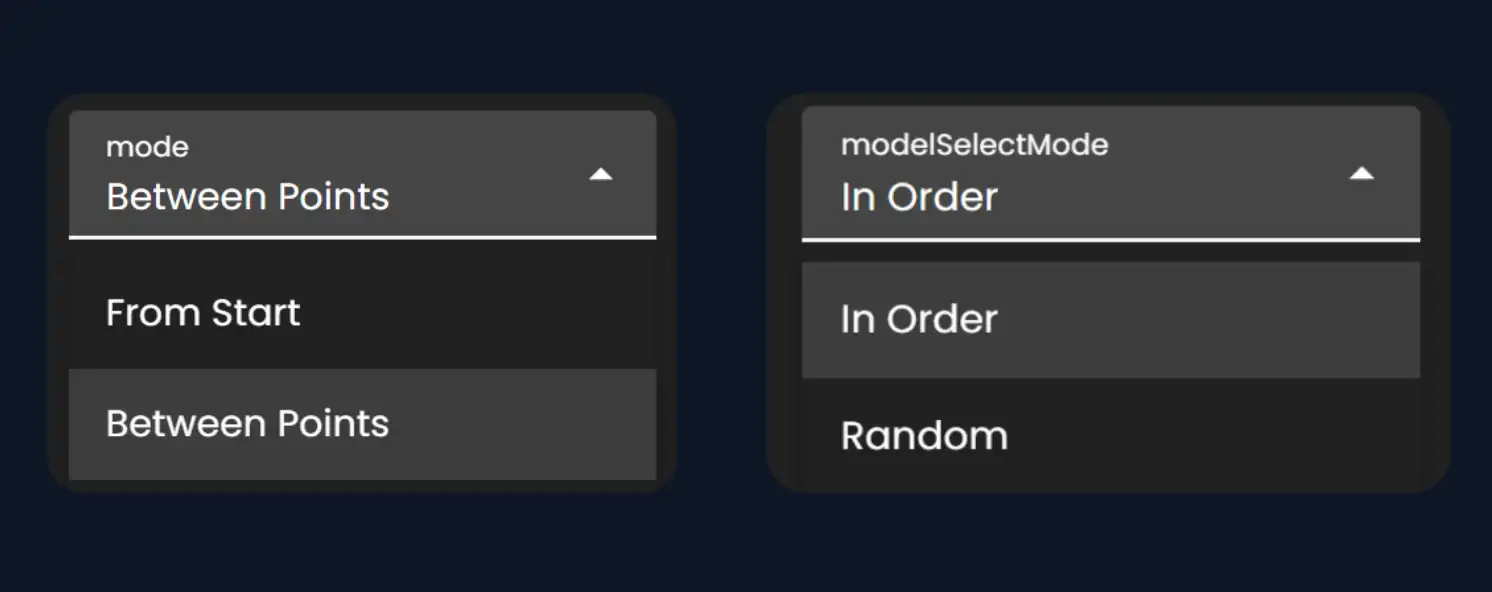
Use mode to determine the spacing between assets.
- •Between Points
- •From Start
Use modulation/details to determine if you want to use assets in the order they appear under 'Models' or if they are randomized.
- •In Order
- •Random
Radial Options:
Use arcSettings to determine the spacing between assets in their circular shape.
Use mode to determine if the assets face towards the center or a particular direction.
- •Point Center
- •Point Direction
Ready to build with Frame?
Join thousands of creators who are building amazing 3D experiences with Frame VR.
For technical assistance, please contact us at support@framevr.io or reach out via our Discord community.
For general inquiries or feedback about Frame, please email hello@framevr.io