
Chat
Use Frame's chat system to communicate with participants in real-time
Chat is a great way to communicate in Frame! With features like Admin Chat, GoTo commands, and Bring User options, you can efficiently manage conversations and guide participants through your space. Chat messages are visible to all connected users, making it perfect for group communication.
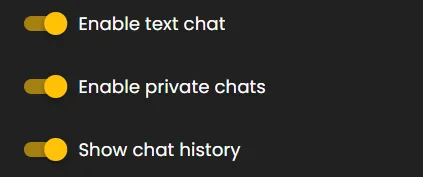
Enabling or Disabling Chat
Chat can be enabled or disabled from Frame Settings under Permissions. Admins can control who has access to chat functionality.
- •Navigate to Frame Settings > Permissions.
- •Find the Chat setting and adjust permissions as needed.
- •Options typically include: Anyone, Members, or Admins.
Send a Message with Chat
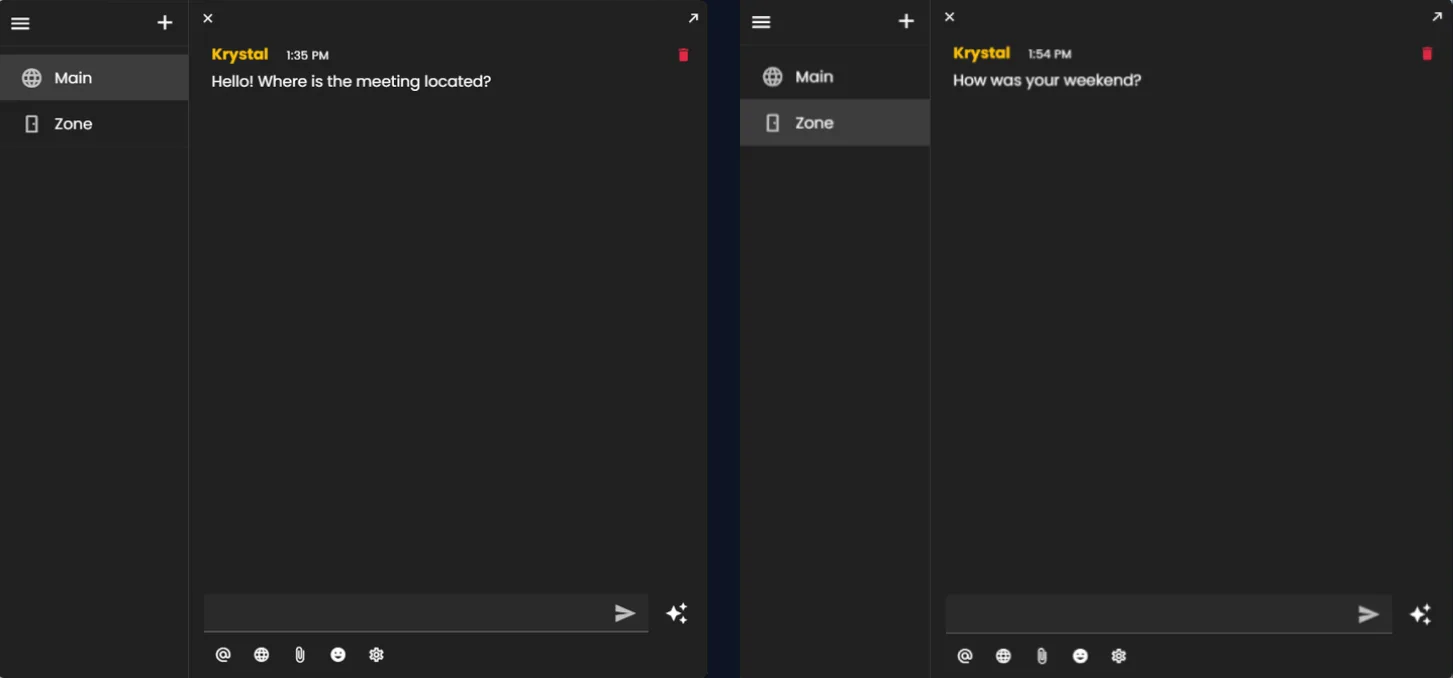
In the chat option at the top of your screen view, select Chat. This opens the chat panel, where you can send messages, images, files, and emojis, and tag others.
- •Open Chat from the top of your screen to open the chat panel.
- •Send text, images, files, and emojis, and tag other users in your messages.
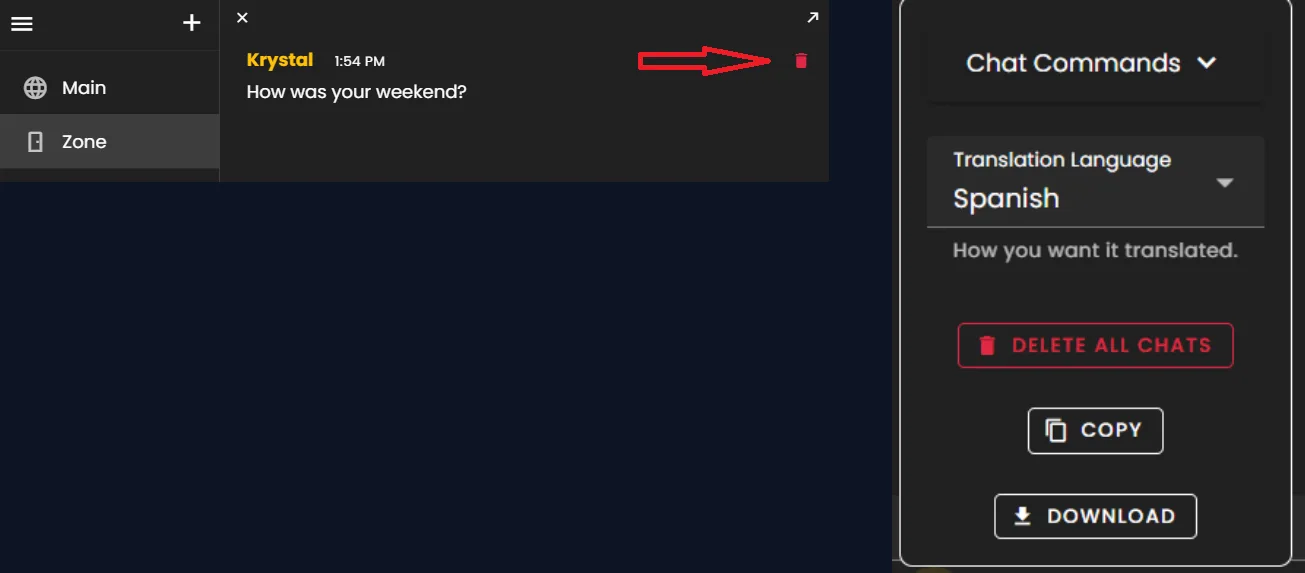
- •In Settings, a more advanced panel opens with translation options and chat commands like Broadcast message.
- •You can copy all chat messages, download them, or delete them all to start fresh.
- •The sparkle icon next to Send is for chatting with AI — select it to get a reply in the chat.
- •The globe represents the main chat: everyone in the Frame space can see those messages.
- •The door represents voice zone chat: if you are in a soundproof area (blue rectangle zone), only people inside that area can see the messages — leave the zone and you will not see that chat.
- •You can also send a private chat to any user you want in the Frame.
Privacy: Admin Chat vs Standard Chat
Frame offers two types of chat to suit different communication needs:
- •Standard Chat: Visible to all users in the Frame.
- •Admin Chat: Private chat only visible to Admins and the Frame owner.
- •Use Admin Chat for private coordination and management discussions.
- •Switch between chat modes using the toggle in the chat interface.
Broadcast message
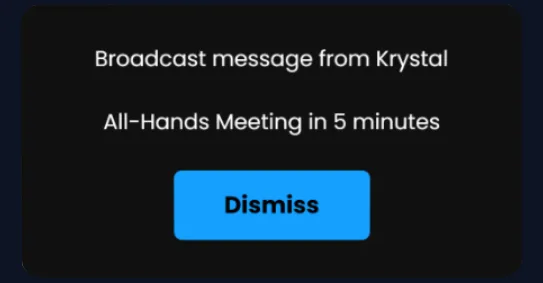
In your chat menu, click the settings wheel and open Chat Commands. To send a broadcast message to everyone in the space, type a command like /broadcast meeting in office 5 — always start with /broadcast, then your full message.
- •Open the chat menu, click the settings wheel, then select Chat Commands.
- •Type /broadcast followed by your message — for example: /broadcast meeting in office 5.
- •Always include the slash and the word broadcast before the rest of your message.
- •Everyone connected in this Frame will see a panel with who sent it and the message.
Send Private Message
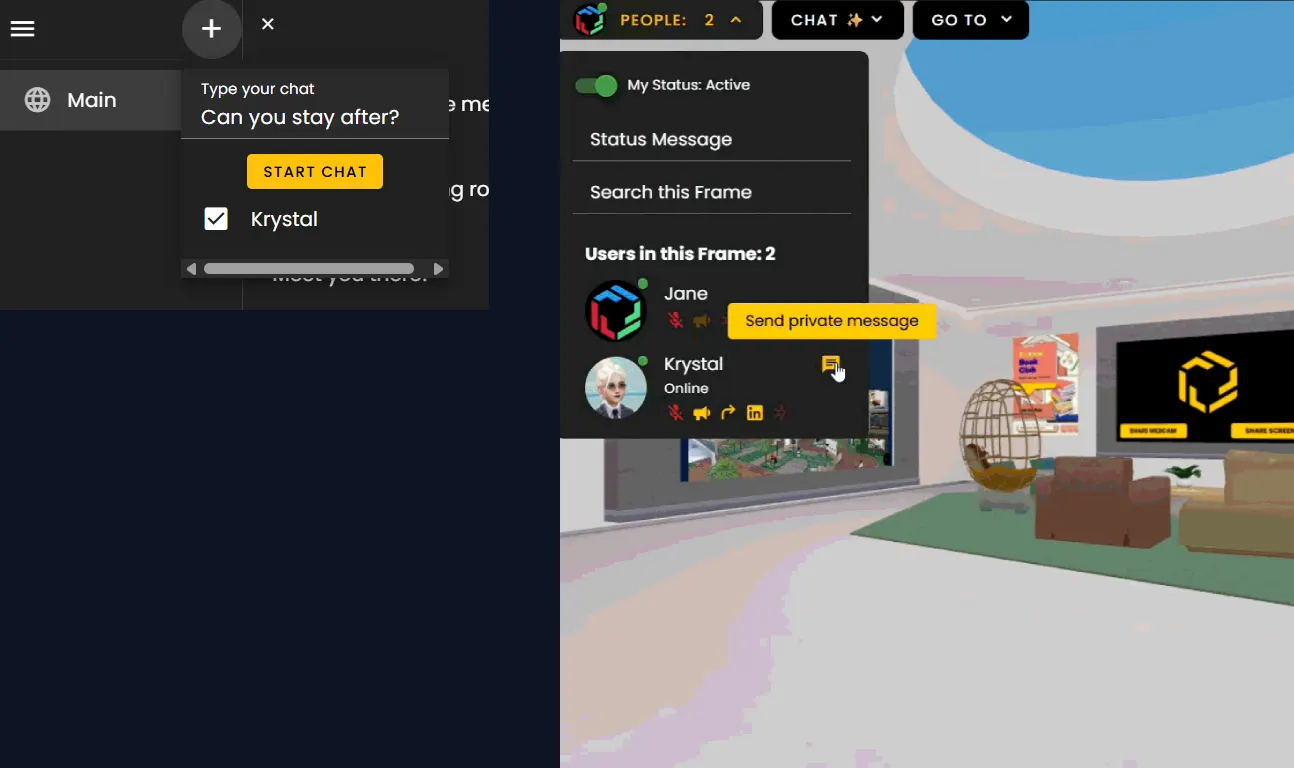
There are two ways to start a private message in Frame: via the People menu, or via chat. By default, messages are sent to the main public chat.
- •In the People menu, hover over a user's thumbnail — next to their name, a message icon will appear on the right.
- •Click the message icon to automatically open a private chat with that user.
- •In chat, click the plus (+) icon to start a private conversation.
- •Select a user, then type a message to begin the private chat.
Translation settings for Chat
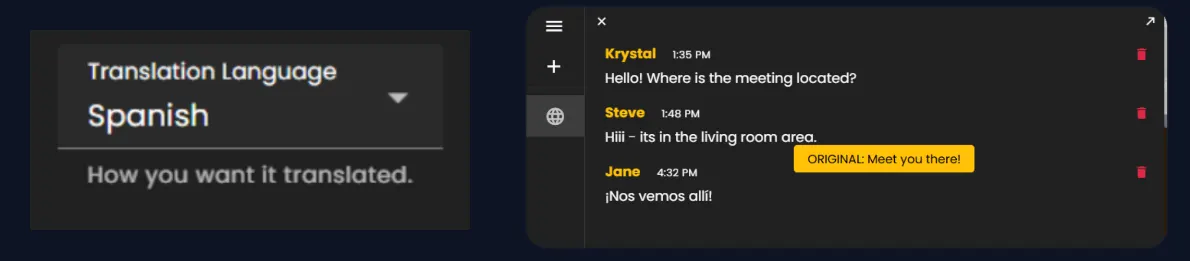
In your chat menu, click the settings wheel, select the translation language you want, and messages will appear translated into the language you pick.
- •Open the chat menu and click the settings wheel.
- •Select the translation language you want to use.
- •Chat messages will appear translated into that language.
- •Hover over a message to see the original language.
Ready to build with Frame?
Join thousands of creators who are building amazing 3D experiences with Frame VR.
For technical assistance, please contact us at support@framevr.io or reach out via our Discord community.
For general inquiries or feedback about Frame, please email hello@framevr.io