
Audio
Manage spatial audio, microphone, and headset sound settings
Audio spheres are a great way to enhance immersive experiences by adding background noise, music or sfx to areas of your Frame. Need to make a speech or presentation? Pre-record your speech and play it the day of the event.
The Creation Menu button in the toolbar
Click the Creation Menu button in the toolbar.
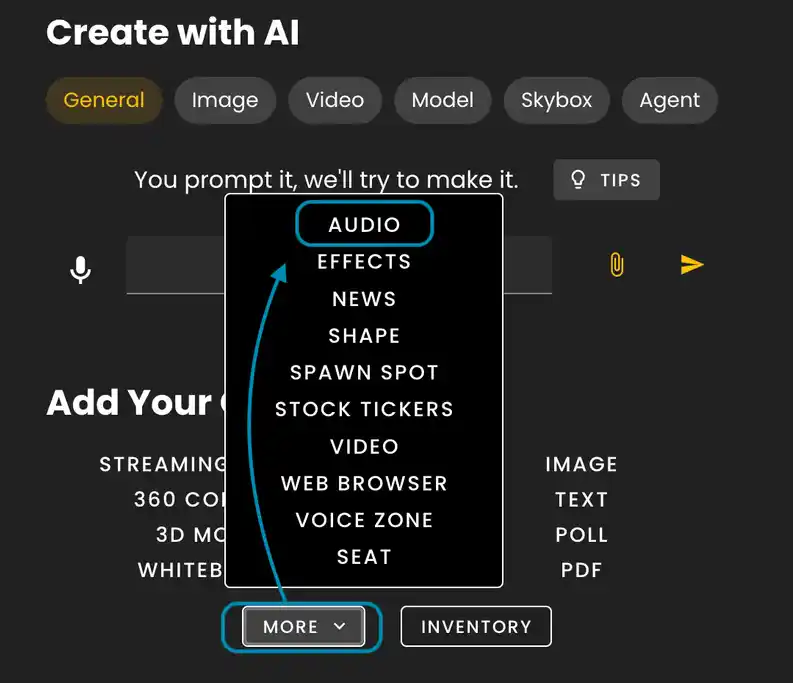
Click 'Audio' under More in Add Your Own
- •Audio files should be in .mp3 format
- •The file size limit is 15MB
- •We do suggest compressing files before uploading them to Frame.
Audio Sphere Settings
Once your audio is uploaded, go into Edit Mode and then select the audio sphere.
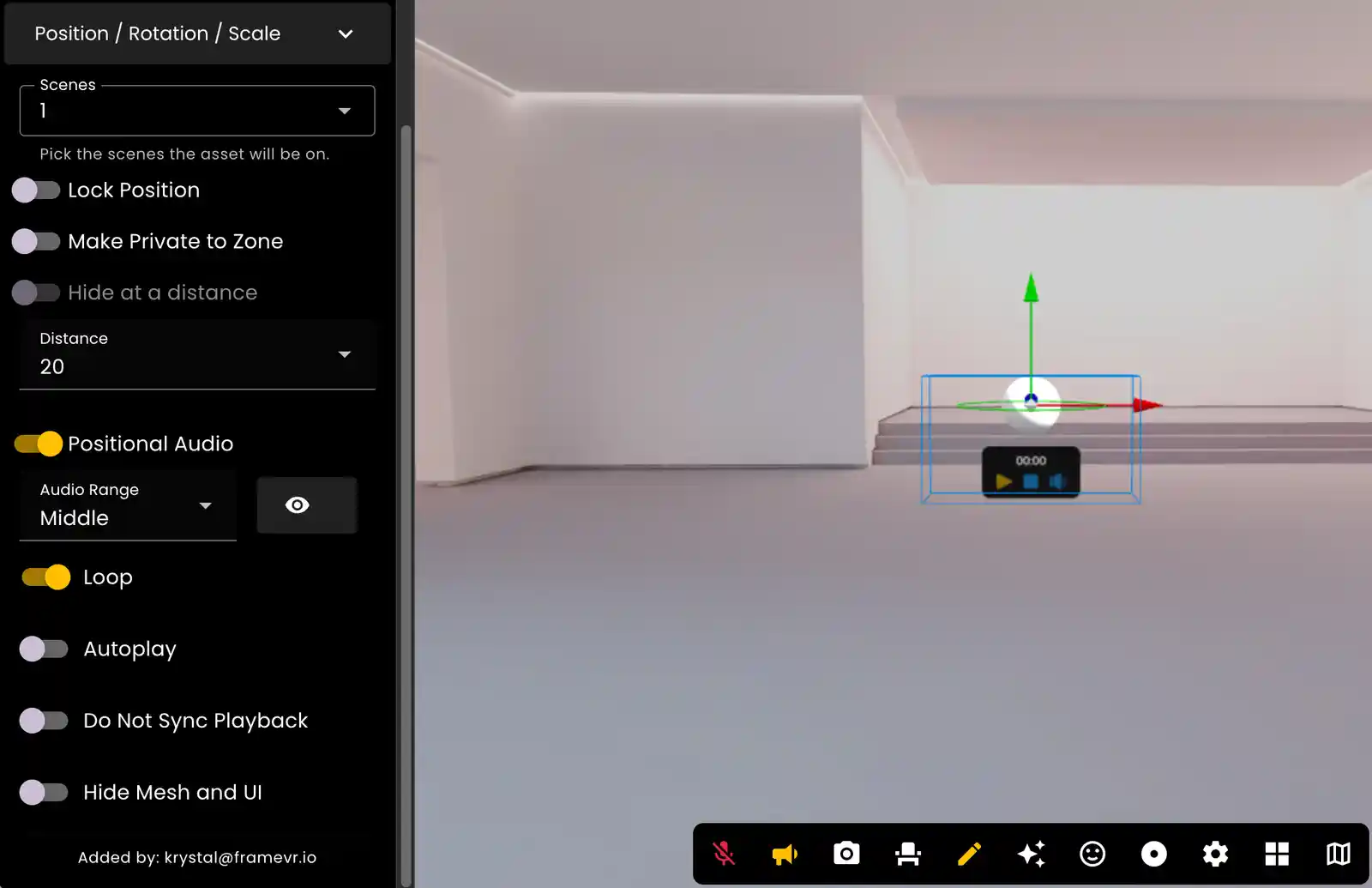
In the spheres edit menu you will see options for the following:
- •Controls for the positional audio range; near, middle, far.
- •If you want the audio to loop
- •sfx or background audio files are good for loops
- •audio that has speeches or other types of verbal content might not need to be played continuously.
- •Autoplay - this will cause the auto to play automatically when a user joins a frame or a specific voice zone.
- •Do Not Sync Playback determines if all users can hear audio at the same point.
- •Hide Mesh and UI - be sure to play the file before hiding and exiting edit mode.
Audio Controls
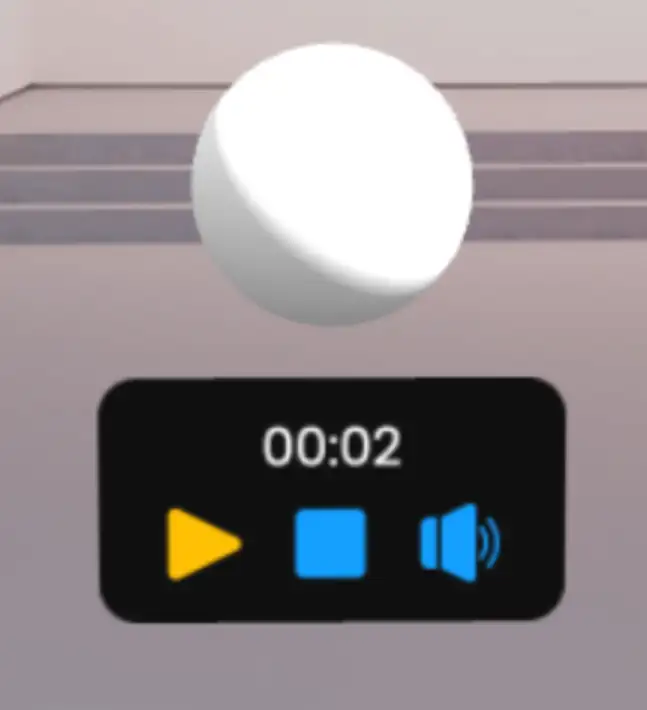
Audio controls are visible for all users to Play, Stop, or Mute the audio and can see time location of the audio.
Ready to build with Frame?
Join thousands of creators who are building amazing 3D experiences with Frame VR.
For technical assistance, please contact us at support@framevr.io or reach out via our Discord community.
For general inquiries or feedback about Frame, please email hello@framevr.io