
AI Agents
Instant help, infinite creativity. Discover our AI agents in Frame to enhance your meetings
Now showing AI Agents
Frame's AI Agents provide intelligent assistance and interaction capabilities within your virtual environment. These agents can be configured with specific knowledge bases, permissions, and interaction modes to ensure consistent, reliable responses across both voice and chat interactions for all users.
Key Features
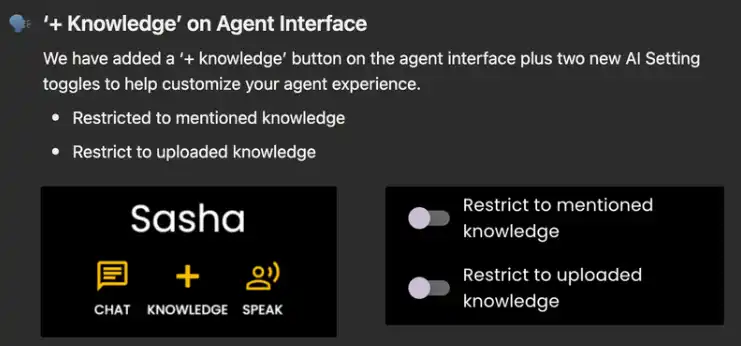
'+Knowledge' on Agent Interface: We've added a '+Knowledge' button on the agent interface plus two new AI Setting toggles to help customize your agent experience:
- •Restrict to mentioned knowledge
- •Restrict to uploaded knowledge
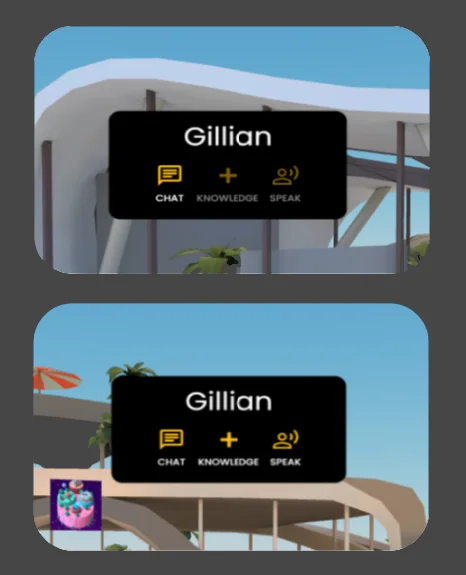
Appearance of Agent Interface based on Role
The agent interface adapts based on user permissions:
- •Guest (No Permissions): Guests can only use chat, they do not have access to Knowledge or voice option.
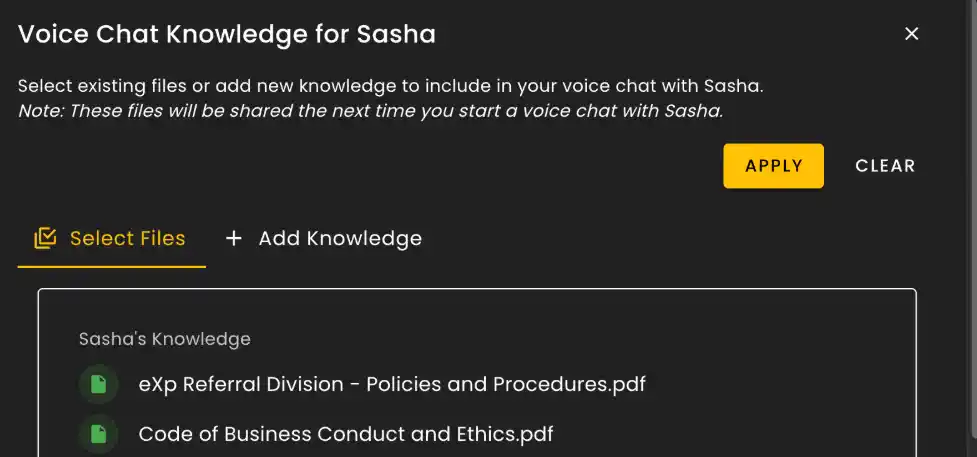
- •Member: Member users can use chat, +knowledge, and voice options. When Member users click '+knowledge' they can only choose from pre-uploaded Global and Agent Knowledge, they cannot upload new knowledge as this option will be greyed out.
- •Admin: Admins have access to all features: chat, +knowledge and voice options. When admin click '+knowledge' they can upload new agent knowledge directly to the agent.
AI Setting Toggles
Restrict to uploaded knowledge
This ensures that information is only taken from the Global and Agent Knowledge sources so information is consistent across chat and speak experiences.

If you are wanting to curate exact responses we suggest using this setting and creating a table of questions, keywords, and responses.

Restrict to mentioned knowledge
This setting is for when you want to ask questions about specific knowledge that was added to Global or Agent Knowledge Bases.
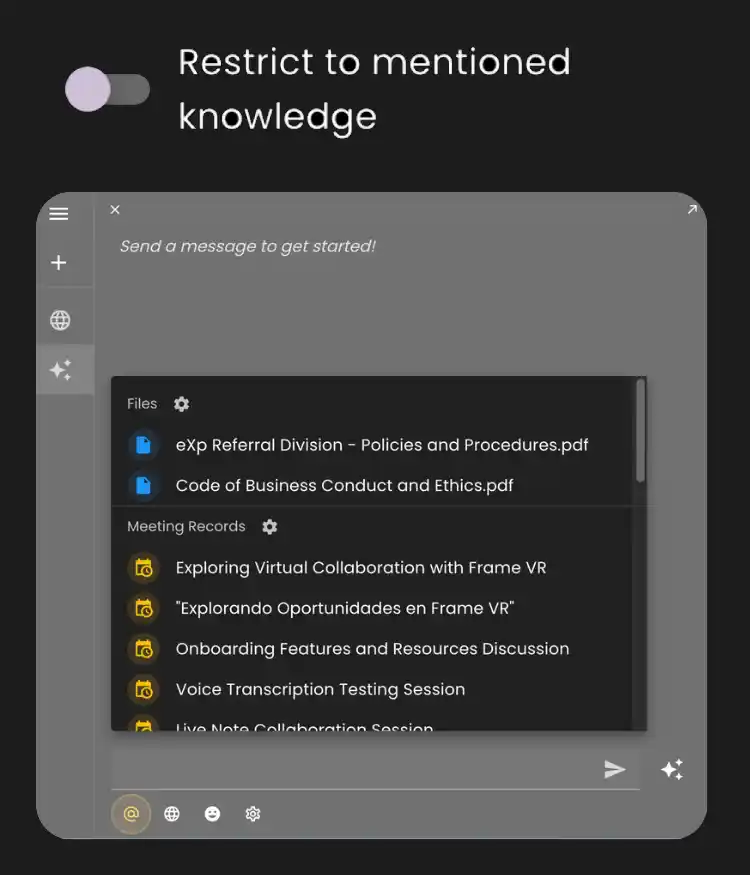
When using Chat users can click the '+' button to select the file or matching keyword they want to ask questions about.
- •Users may know which resource to find information but may not want to manually search through the file.
When wanting to use mentioned files with the Agent Speak option just click the '+' button to select any files/knowledge sources to ask questions about. Then click Speak on the AI Agent Interface and voice your question.
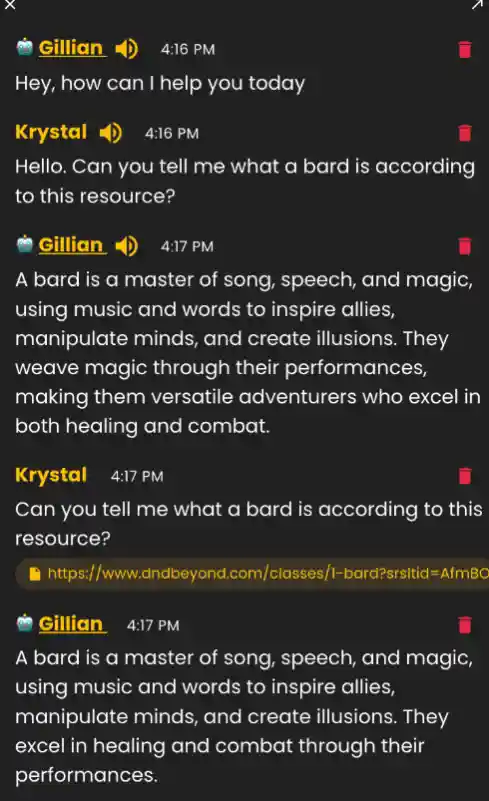
Voice vs Chat Interaction Examples
We have included speaker icons to signify that a conversation was had using voice through the agents 'Speak' option.
- •When the chat entry doesn't show the speaker icon it means that this is a Chat interaction from using 'Chat' on the Agent.
Agent Analytics
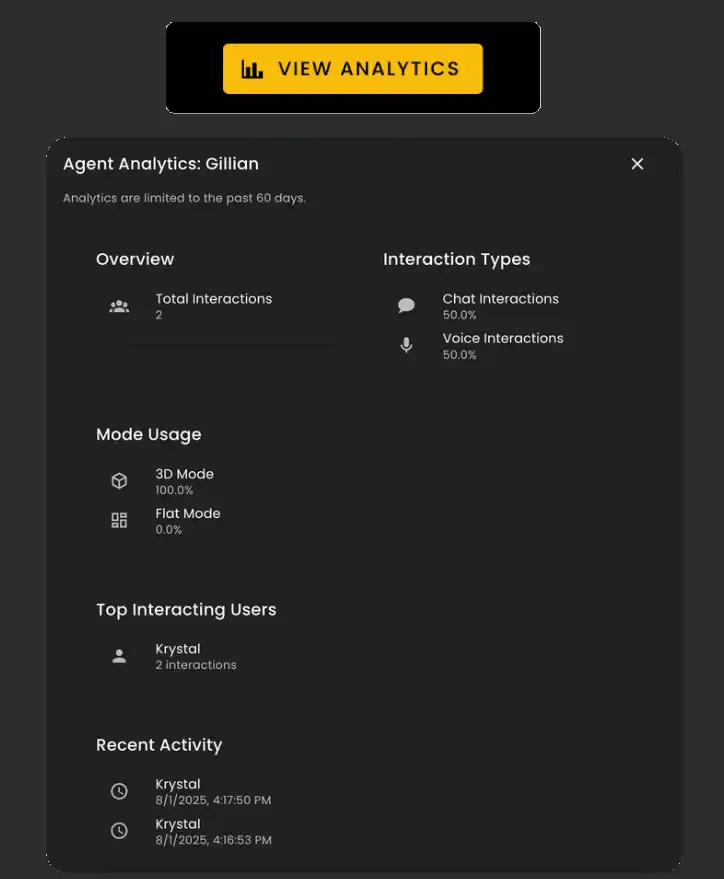
To help users understand how their AI agents are being used, we've added a 'View Analytics' button to the Agent's Edit Menu.
Analytics are filtered to the past 60 days. It will show you the following information: total interactions, interaction types, top interacting users and recent activity.
Ready to build with Frame?
Join thousands of creators who are building amazing 3D experiences with Frame VR.
For technical assistance, please contact us at support@framevr.io or reach out via our Discord community.
For general inquiries or feedback about Frame, please email hello@framevr.io