
AI Agent - Clear Context
Reset the AI agent's context to make it use the updated documents
When you have a setup AI Agent and you update its documents you may need to reset the agents context in order to get it to focus on the new information.
The below conversation with an AI Agent shows outdated information from knowledge that was previously uploaded. There are conflicting answers to what 'Home' represents and uses previous information to curate further responses.
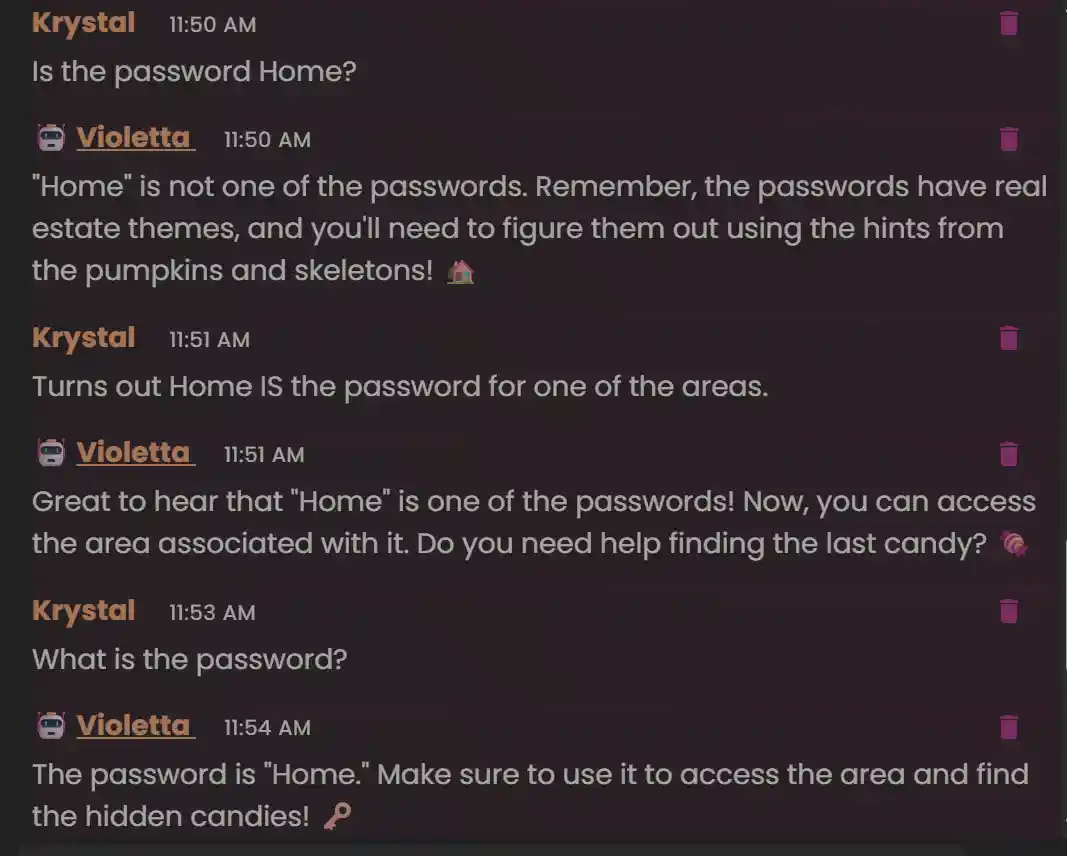
When this occurs you'll need to reset the agents context to get the latest information and for the agent to disregard previous interactions you had with that agent.
Reset Agent Context (User Chat)
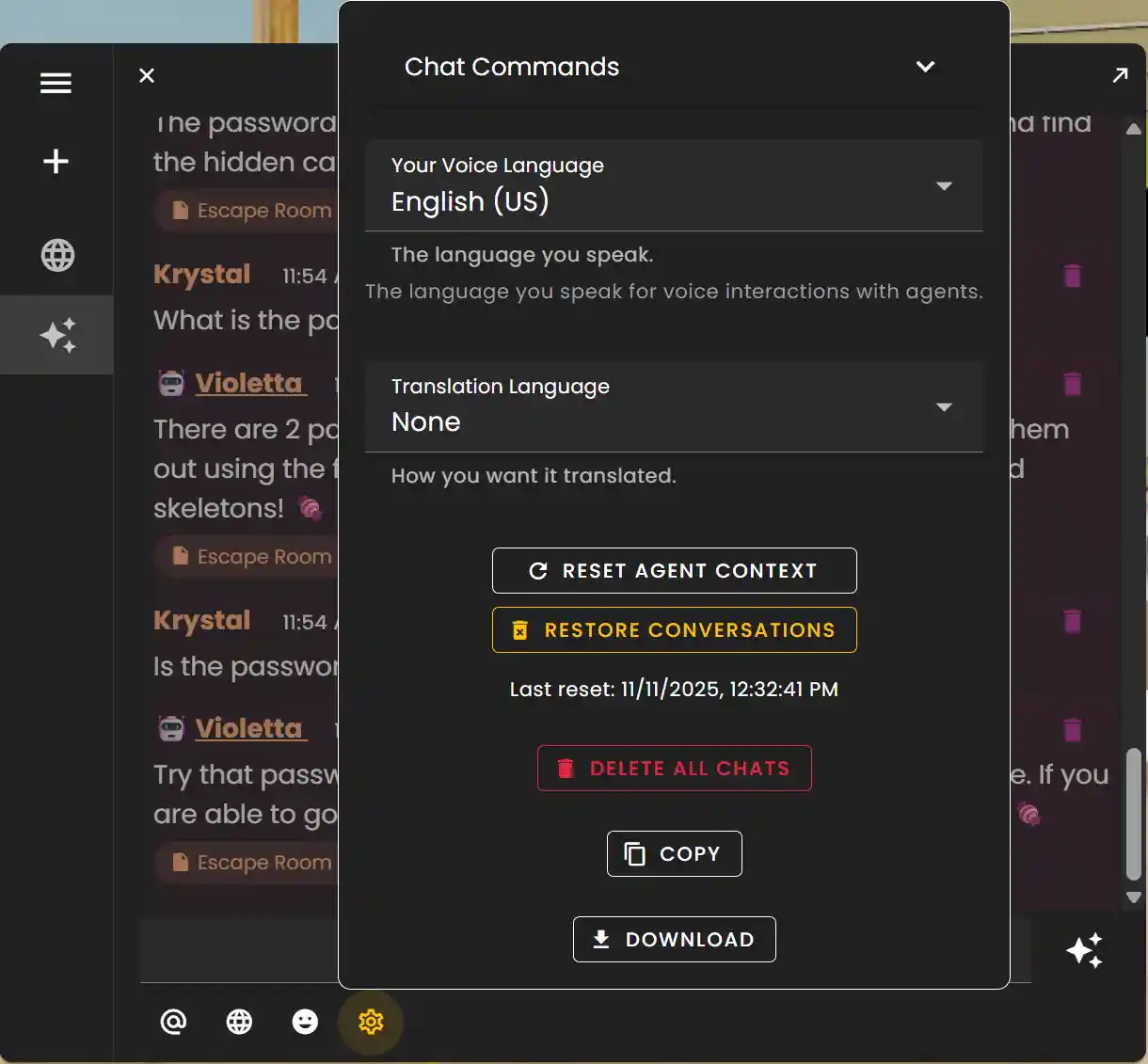
You can do this by clicking the Settings button in the Chat window.
- •Click 'Reset Agent Context'.
- •This will only apply to this users conversation.
- •If you would like to undo this change simply click 'Restore Conversations'.
- •You will see a timestamp for when you last reset the agent.
Reset Agent Context (All Chats)
When new information is uploaded to agents Admins should reset the agents context so it affects all conversations had with that agent.
- •To reset all conversations across all users who use that Agent either go into Edit Mode, select that particular agent and then click 'Reset Agent Context'.
- •You can also perform this action on the AI Dashboard.
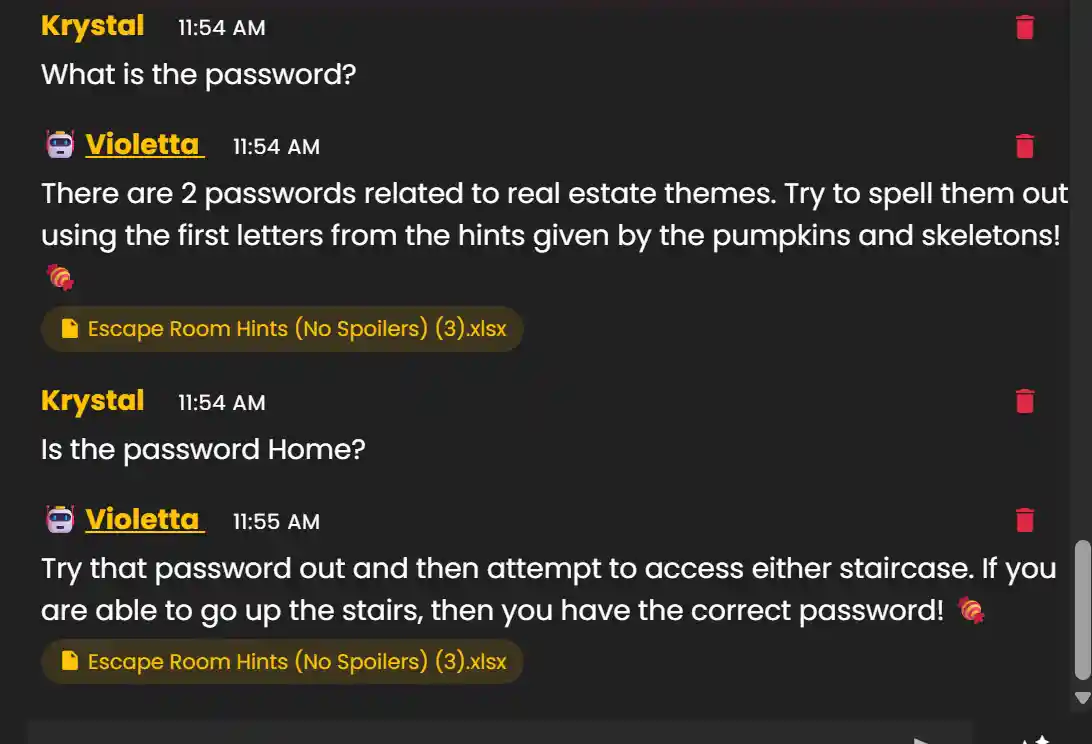
Remember: This is the conversation after the agent context has been reset. You can see that it's pulling the new information and shows different answers to the ones it was previously giving.
Ready to build with Frame?
Join thousands of creators who are building amazing 3D experiences with Frame VR.
For technical assistance, please contact us at support@framevr.io or reach out via our Discord community.
For general inquiries or feedback about Frame, please email hello@framevr.io