
Accessibility
Update your profile, accessibility, and avatar settings for a tailored experience
Now showing Accessibility
Frame supports adding basic accessibility descriptions ("alt text") on assets in your Frame and the environment itself.
Basics
- •Frame supports adding basic accessibility descriptions ("alt text") on assets in your Frame and the environment itself.
- •Frame also supplies built-in accessibility descriptions on the 2D UI elements as well.
- •Frame is most easily navigated with screen readers such as NVDA (https://www.nvaccess.org/)
- •With the 3D scene focused and accepting direct input, the Frame hotkeys can be used for basic functions such as mute/unmute. See Hotkeys + Shortcuts.
Using Frame with a Screen Reader
- •We recommend using the screen reader NVDA (https://www.nvaccess.org/) to most easily navigate Frame.
- •After the page loads, the 3D scene will be focused. The 3D scene itself is labeled as "3D Scene". Use the next/previous item keys for your screen reader (NVDA: up/down) to find the connect button.
- •Use the keyboard shortcuts to connect as a user (Enter key) or a spectator (Control+Enter).
- •Use the next/previous button (NVDA: B key) to find the "PEOPLE", "GO TO", "CHAT", and sidebar buttons.
- •With the 3D scene focused and accepting direct input, the Frame hotkeys can be used for basic functions such as mute/unmute. See Hotkeys + Shortcuts.
- •The 3D scene will contain an item for the environment and each asset that has alt text added.
Adding Accessibility Text to Assets
The following 3D Assets support descriptive text ("alt text"):
- •3D Models
- •Images
- •Text Labels
- •Text Areas
- •PDFs
- •360 Photos
To add text, enter edit mode, select the asset, expand the "Accessibility" panel in the Editor, and fill in the text.
Clearing the text entirely (or using only spaces) will remove the accessibility text from the scene.
Adding Accessibility Text to Environment
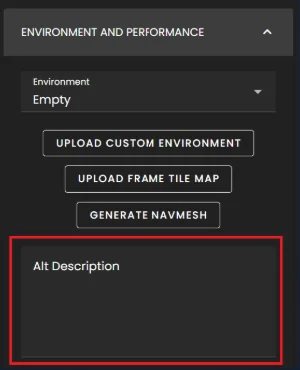
In the sidebar, enter the Frame Settings. Expand the "Environment and Performance", and edit the "Alt Description". Once again, clearing the text or using only spaces will remove it from the scene.
Ready to build with Frame?
Join thousands of creators who are building amazing 3D experiences with Frame VR.
For technical assistance, please contact us at support@framevr.io or reach out via our Discord community.
For general inquiries or feedback about Frame, please email hello@framevr.io