
3D Models
Learn how to add, move, and customize 3D objects to bring depth to your Frame environment
Now showing 3D Models
3D Models in Frame can be uploaded from various sources, including Sketchfab, the Frame asset library, AI-generated models, or by directly uploading your own files in the .glb format.
The Creation Menu button in the toolbar
Click the Creation Menu button in the toolbar.
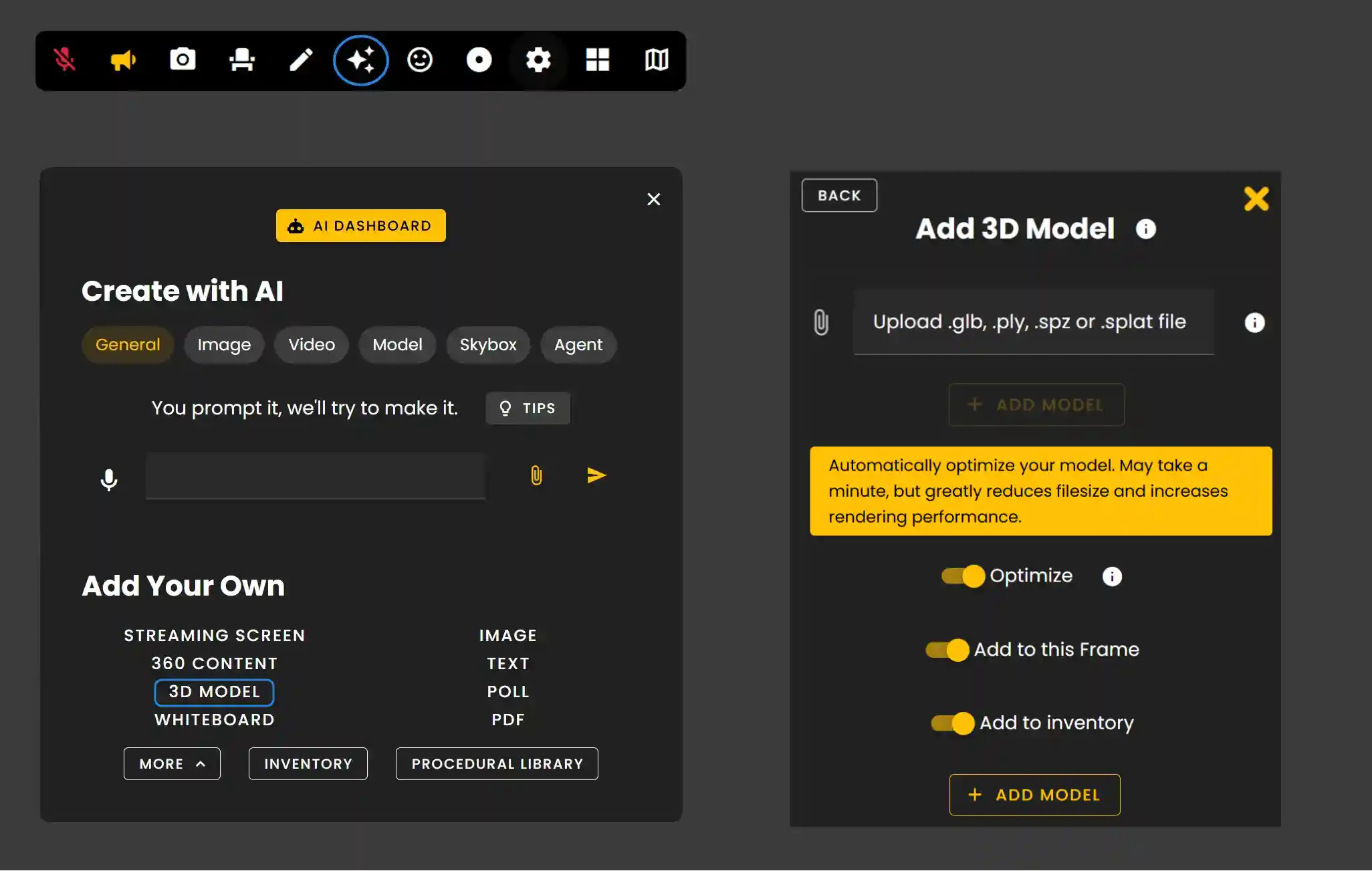
Click '3D Model' under Add Your Own.
You can choose to optimize your model if desired.
Choose to add it to your Frame immediately or save it to your Inventory to be used later.
AI Model generation in sidebar & creation menu
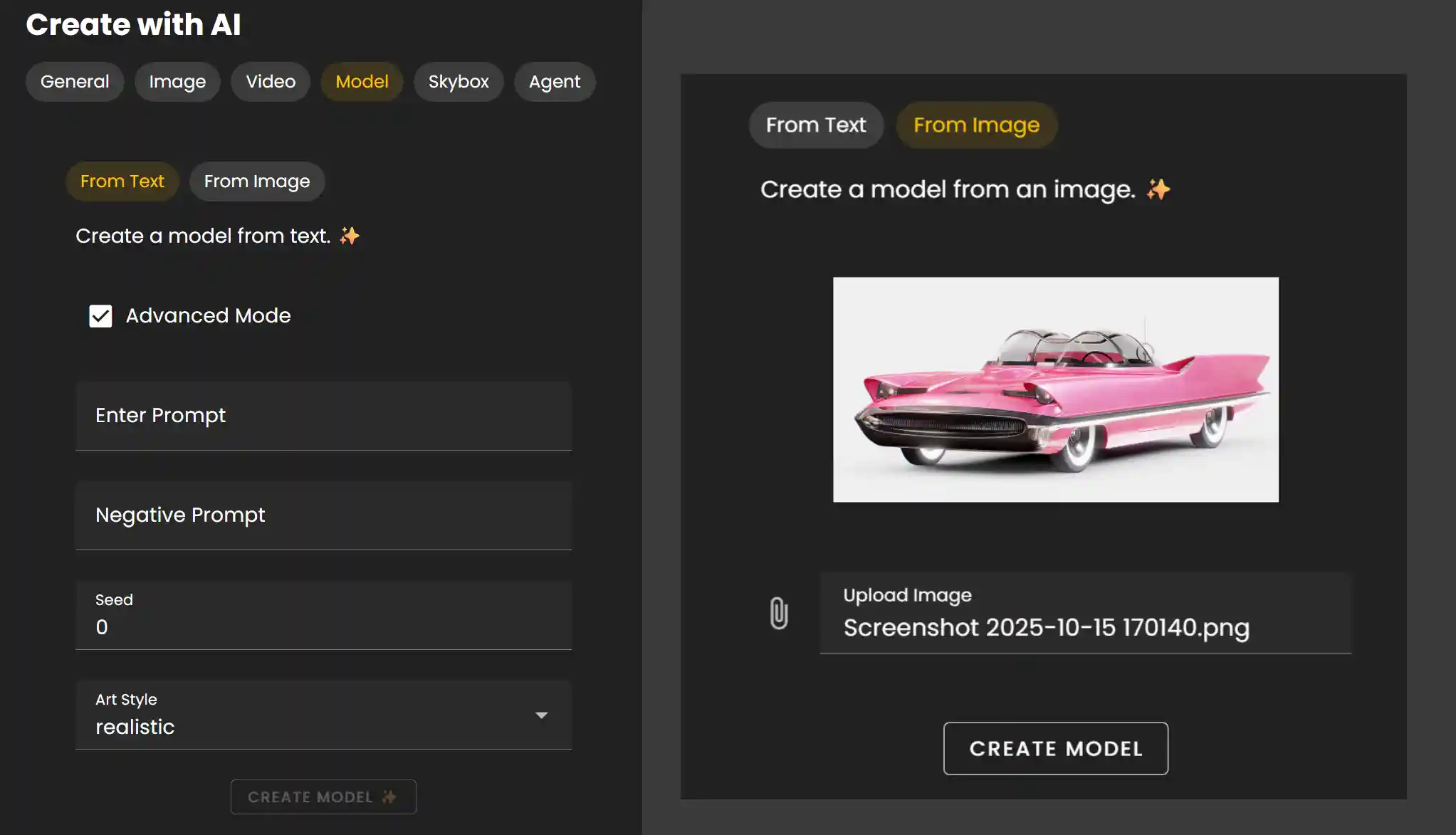
Click the 'Model' tab under Create with AI.
- •With 'From Text' selected:
- •Enter a prompt for what you want your model to look like
- •With Advance Mode, you can enter a negative prompt, set your seed value and look at other styles.
With 'From Image' selected:
- •Upload an existing image file and click Create Model.
Upload from Sketchfab
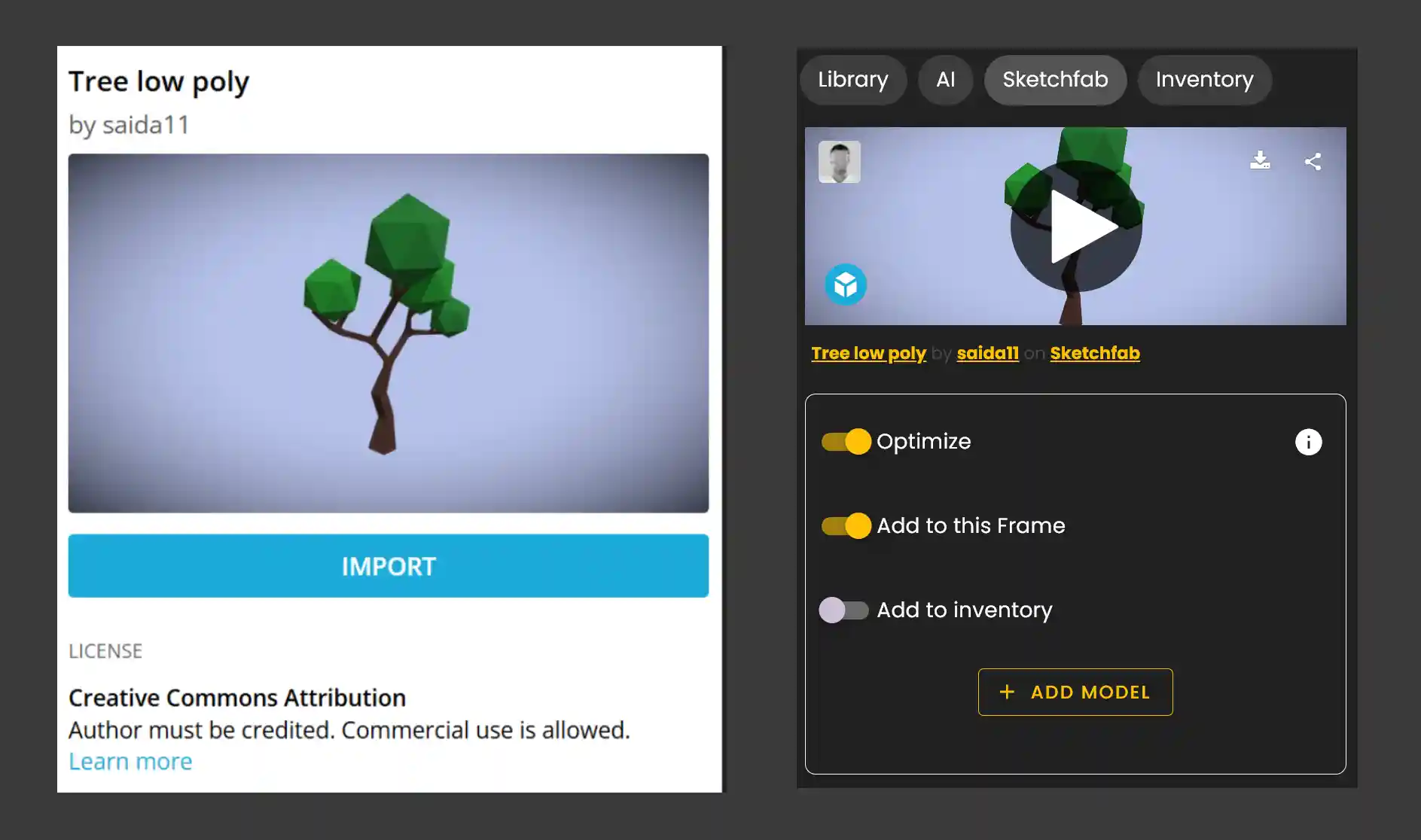
Click '3D Model' under Add Your Own. Then scroll down and select Sketchfab from the options list. You will need to login and authorize to access Free Models.
- •Then search for the model category you want and then click a model from the list.
- •Click Import.
- •Then select to optimize and add it to Frame or Inventory.
Model Settings
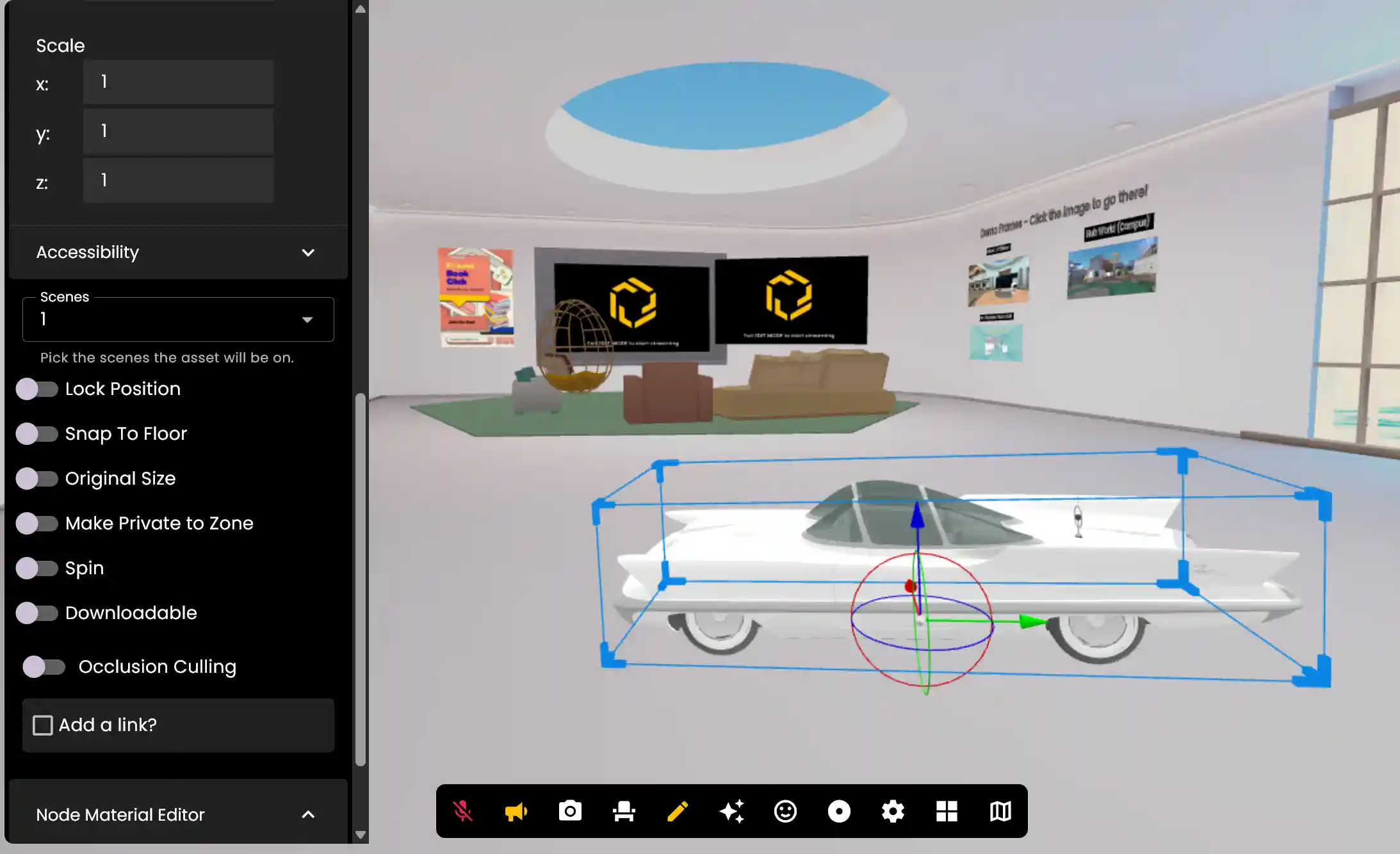
Once your model is uploaded you can go into Edit Mode and toggle the various settings to customize the model further.
Remember: 3D models support .glb format. You can import from Sketchfab, generate with AI, or upload your own files.
Ready to build with Frame?
Join thousands of creators who are building amazing 3D experiences with Frame VR.
For technical assistance, please contact us at support@framevr.io or reach out via our Discord community.
For general inquiries or feedback about Frame, please email hello@framevr.io