
2D Assets
Learn how to add 2D assets from the toolbar to bring images, text, and documents into your Frame
The toolbar in Frame is a bottom-center panel that gives quick access to key features like muting your mic, turning on your webcam, using emojis, and toggling edit mode. It also allows you to open the creation menu to add 2D assets such as images, PDFs, and videos to your Frame, which can then be positioned and resized as needed. This toolbar helps users easily manage communication, interaction, and content creation within the virtual space.
Opening the Creation Menu
Locate and click the Sparkles icon on the toolbar to open the Creation Menu. This menu provides access to all asset creation options.
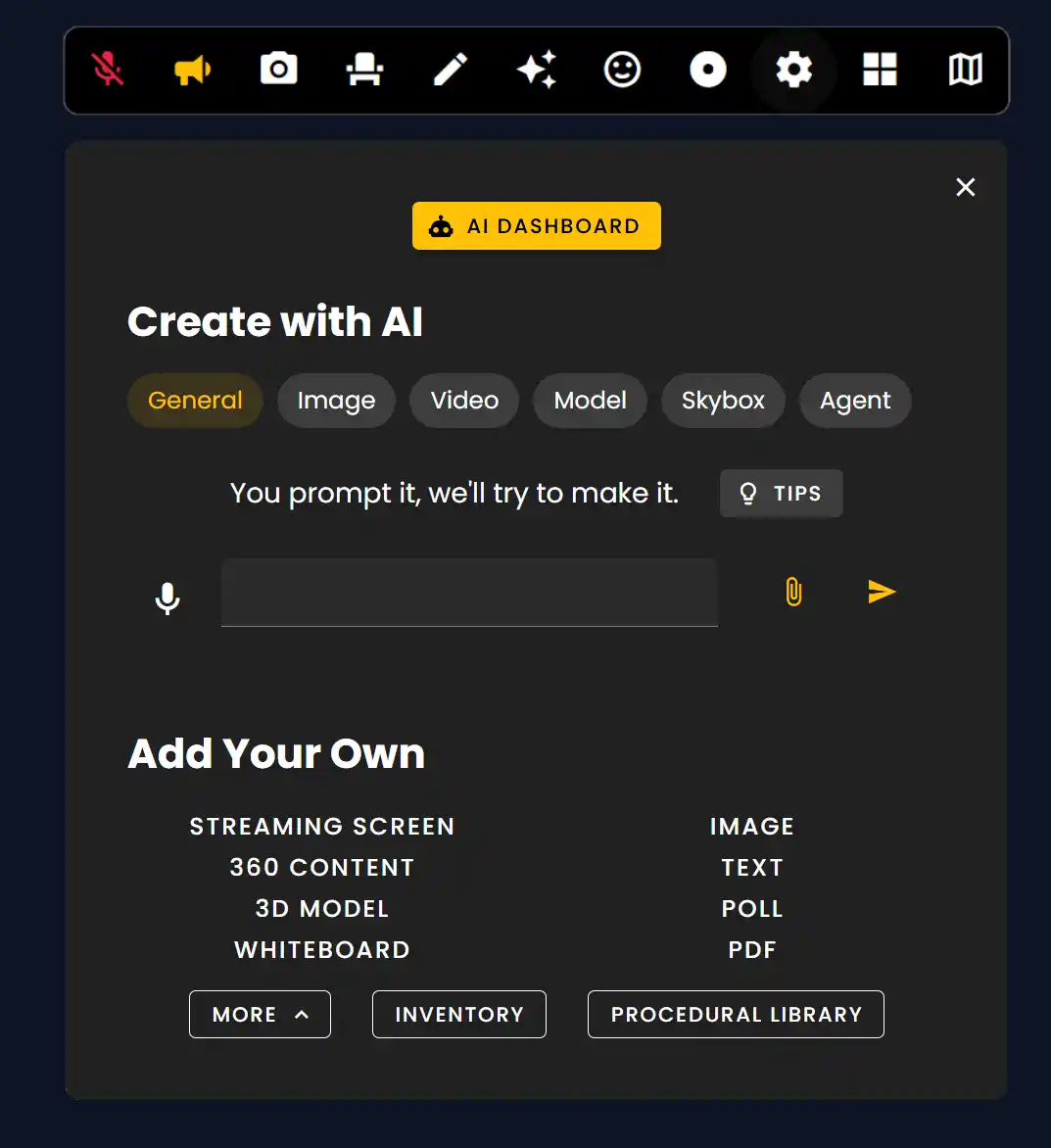
Create with AI
Frame offers AI-powered creation tools to generate content directly within your space:
- •Image: Generate AI images from text prompts
- •Video: Create AI-generated video content
- •Audio: Generate audio assets
- •Skybox: Create immersive 360° backgrounds
- •Agent: Add AI-powered interactive agents
Add Your Own
Upload your own 2D assets to personalize your Frame:
- •Stream My Screen: Share your screen with others
- •File Upload: Upload images, videos, and documents
- •Web Browser: Embed interactive web content
- •Whiteboard: Add collaborative drawing surfaces
Positioning 2D Assets
After adding a 2D asset, enter Edit Mode to position, rotate, and scale it within your environment. Use the gizmo controls or the properties panel to fine-tune placement.
Remember: 2D assets like images, PDFs, and videos are essential for creating informative and engaging Frame experiences. Use them to display presentations, artwork, or any visual content in your virtual space.
Ready to build with Frame?
Join thousands of creators who are building amazing 3D experiences with Frame VR.
For technical assistance, please contact us at support@framevr.io or reach out via our Discord community.
For general inquiries or feedback about Frame, please email hello@framevr.io